
Create site
Create custom online sites that perfectly align with your brand
Sites and stories go hand in hand. Think of it this way: once you've published a story or press release, these publications now have a place to live, where visitors can have access to and read them anytime – and that home is a site.
You can set your site name, branding, theme, language, media, and more, all easily accessible from your site dashboard.
Whenever you're ready to start setting up your own site, feel free to use the video below as a quick guide:

Note: The number of Prezly sites you can create depends on your plan. Please check our pricing page for a comparison of features.
Inspiration
Prezly sites are the homepage for your company news, a campaign website or a product launches. They can be customised for different purposes and use-cases.
Want some inspiration?
→ Different ways to use your Prezly sites
Creating a Prezly site
Sites play a central role in the Prezly ecosystem. They act as the home for all your stories and press releases, giving you a permanent place to publish, organize, and share your content.
Unlike email campaigns, which are naturally short-lived, Prezly sites help your content stay discoverable over time. They are built to be indexed by Google, ChatGPT, and other search and AI platforms, helping your stories continue getting found long after you hit send.
Creating your first Prezly site
If you’re new to Prezly, you’ll most likely create your first site during your trial.

You can do this in two different ways from your trial checklist:
- Automatically, when creating your first story
- Manually, through the initial site setup flow
When creating a new site, you’ll also have the option to import your branding automatically in a single click. You can learn more about this in the Brand Importer section below.
Adding additional sites
Prezly allows you to create and manage multiple sites within the same account.
This is especially useful for:
- Agencies managing multiple clients or brands
- Companies with multiple brands or sub-brands
- Teams managing content for different regions, products, or audiences
You can create additional sites from two different places:
From the app homepage At the top of the homepage, you’ll find the “Add another site” button.

From the Sites page: On the Sites grid page, you’ll find the “Create site” button in the top-right corner.

Clicking either button will start the site creation flow, where you’ll also have the option to import your branding automatically by adding your brand’s main website URL.
Using the brand importer
Our brand importer helps you set up a new site in seconds by automatically importing your brand assets and information.

By simply adding your brand’s main website URL, Prezly can automatically import:
- Site name
- Logo
- Accent color
- About section
- Social links

This feature is powered by Brandfetch and works with millions of brands worldwide. While imports work well in most cases, some information can occasionally be outdated or incomplete, so we always recommend reviewing imported content before publishing your site.
For the best results:
- Use the brand’s main domain (for example, prezly.com)
- Avoid subdomains or long URLs
- Review imported assets after the import finishes
If needed, all imported content can still be edited manually later in your site settings.
Adding site details manually
If you prefer to set up your site yourself (or if our Brand Importer can’t fetch your brand information) you can always add your site details manually during the site creation flow.

In the site creation panel, you’ll be able to:
- Add your site name and URL
- Define your site accent color, used across buttons, links, and other interface elements
- Upload your brand logo
- Choose whether your site should go live immediately or remain not-live after creation
Once your site is created, you’ll be able to:
- Preview it using any of the available preview buttons
- Open and view the live site
- Continue customizing its information, layout, and styling through the site settings pages
Change site name
You can rename your site by updating the company information in your site settings. To customize the company information, access your site settings page.
- If you have one site, click Home in the side navigation, or if you have multiple sites, click Sites and then select the site you want
- Select Site details & Languages
- For sites with a single language, the site name field should be located at the top of the menu
- For sites with multiple languages, you will need to click on each language. A side menu should appear with the site name field showing at the top
Tip: Please note that updating the site name does NOT change the site URL. To update the site URL, contact us via chat or send us an email at support@prezly.com
Site domain/URL
By default, your sites are on the prezly.com domain (e.g., yourbrand.prezly.com). You can easily replace this with a custom link on a domain that you own (e.g., sitename.yourbrand.com).
Having your site on your own domain looks more professional and passes on SEO value to your website. To set up your custom domain, you just need a little help from your IT partner.
In case you want to change the URL of your prezly.com site, please contact our support team.
For sites using a custom domain, please scroll down for more information.
Setting up a custom domain
See how to use your own domain for your Prezly site, e.g. sitename.yourbrand.com.
Step 1: Add domain
Go to the Domain settings page via your site's dashboard. On the Domain page, select "Add custom domain".
Finally, type in your desired URL and hit "Add custom domain" one last time.

Warning: You should always use a sub domain. Root domains or paths/subdirectories are NOT SUPPORTED.
✅ examples of allowed sub domains are: press.mydomain.com or www.mydomain.com.
❌ examples of not-allowed rood domains or paths are: mydomain.com or mydomain.com/press/
Prezly will check if you have the proper domain settings and add them only if they are correct. Please take note of the unique CNAME value generated for your site. You will need it later!

The "Send instructions to IT" button generates a temporary page and/or allows you to send an email with all the necessary info for your IT team or service provider to take care of the domain set up on your end.

Step 2: Creating a CNAME
Create a CNAME record (DNS setup) in your domain settings and point it to the URL you obtained during the custom domain setup on Prezly.
Don't worry if you don't understand what this means. Simply forward this article to your IT team, and they can help you out.
Note: It can take a while for a new CNAME to start working.

CLOUDFLARE users: DNS records can have a "Proxied" status in Cloudflare which is a feature that WILL interfere with normal operation here, please make sure your CNAME records are set to "DNS only".

Refer to Cloudflare's own documentation for further explanation if necessary.
Tip: For every custom domain that will get mapped to Prezly, our system generates an SSL certificate to make the site default to HTTPS. You don't need to do anything extra for this, but it can take a while (usually an hour max) before the certificate will be applied.
Changing your site (sub)domain
Please bear in mind that if you update the URL of your site, all existing links to it will change to your new URL – which means that any site links using your old campaign will no longer work! That includes story links in campaigns and pitches.
How to update your site's URL depends on who owns your domain:
Using a prezly.com domain
Assigned .prezly.com domains can not be changed. Just send us a message and we'll be happy to update your URL for you if it's available.
Using a custom domain
If you're using your own domain you can change the URL yourself.
First, you'll need to remove the current custom domain and then simply follow the same instructions you used when initially setting up your site. You can find them here.
Company information
In this section we'll explain how to add a boilerplate, contact info, and social links to your site.
Set up the content that appears in your site footer, such as social networks, phone numbers, address, websites and a boilerplate on your Site info & languages page. All these settings are customisable per language.

Adding company information to your site
- To add your site information, head on to the Sites dashboard.
- If you have a single site, the refreshed screen will show your site's settings options. Click on Site details & languages.
- If you have more than one site, the screen will show you all your sites. You'll need to either click on your target site's name or click on the (...) at the end of your site's card and select Site settings ⚙️.
- The screen will then refresh and bring you to your Site details & languages page.
- If you have a single language enabled, you will see multiple editable fields where you can edit the primary details published in your newsroom.
- If you have a multilingual site, the Site info & languages page will initially show you all enabled languages. Clicking on each language will reveal a side menu where the same primary details can be changed.
Remember to add the correctly translated text for each activated language.
From within this setting, you have the opportunity to add more details to the following fields like company name, email, website, phone number, address and social network links (X, FB, LinkedIn, Pinterest, YouTube, Instagram and TikTok).

Boilerplate
This place can be used to share your company bio or any other relevant information you might need.

All of the fields are optional except for Name. We recommend providing more information about your company and encouraging readers to also follow your social media platforms to keep up with what's new with your company or brand.
Site branding settings
Go to your site settings and choose "branding" from the sidebar on the left to edit the logos and colours that appear in your site.
Site main logo
This is the image that will be displayed in the header in your site:

- Logo image should preferably have a transparent background for better results
- No margins around the logo
- Be at least 100px high for better results
- Be 300 pixels wide max
- Preferable filetype: PNG/SVG

Pro tip: If you have your logo as an SVG file, use that instead – it will look crisp whatever size your display :)

Square logo
- Your square logo will be used in places where it better fits the format, such as for sharing and preview icons
- Should be a 1:1 image larger than 400px
- Preferable filetype: PNG/SVG

- Check the box beneath the uploader to use this image as your site's favicon icon too (that's the little image that appears in the toolbar of your browser)

Logo best practices
- Do not have an overly long logo
- Logos should not include small or hard to read text

- Do not include small, hard to read text in a Square logo

💡 Pro tip: If you require help with your logos, reach out to your graphic designer or get in touch with us and we can make adjustments for you.
Story style in campaigns and pitches
Use these settings to choose how your stories display in campaigns and pitches

(Multi) Languages
Prezly allows you to publish stories in multiple languages, making localization that little bit simpler. Translations of the same story are linked together, so that visitors to your newsroom are able to toggle the language of the story they're reading using the language picker dropdown at the top of your site.
This is useful for organizations that need to work across different markets. Having different language versions along with a specific locale is a powerful way to make sure you can work together across a global organization with the same site.
Add a language to your site
To add multiple languages to your site:
- If you have one site, click Home in the side navigation, or if you have multiple sites, click Sites and then select the site you want
- Click on Site settings, then Site info & languages
- Click on Add language and find the language(s) you wish to enable for your site. You can select multiple languages from the language dropdown and they will immediately be add to your list of languages.
Once you have multiple languages enabled for your site and those languages have stories published publicly, you will see a language switcher in the header of your site.
Can't see the new languages in the navigation of your site? Don't worry – they'll appear once you've published a story in that language.
Set up site information for each language
You can set up specific site information, such as boilerplate and contact details, for each language you have enabled.
To do this, simply click on the language in your Site info & languages settings. This will open a side menu where you can update the site name, contact details, social link and boilerplate text.

Change the default language
Your site's default language is the first and main language your visitors will see when they visit your site URL. This is set to English as standard, but you can easily change your site's default language in your settings.
To set another language as the default, hover over the language, click on the ••• button that appears at the right of the screen, and click Set as default.

Share your site in a specific language
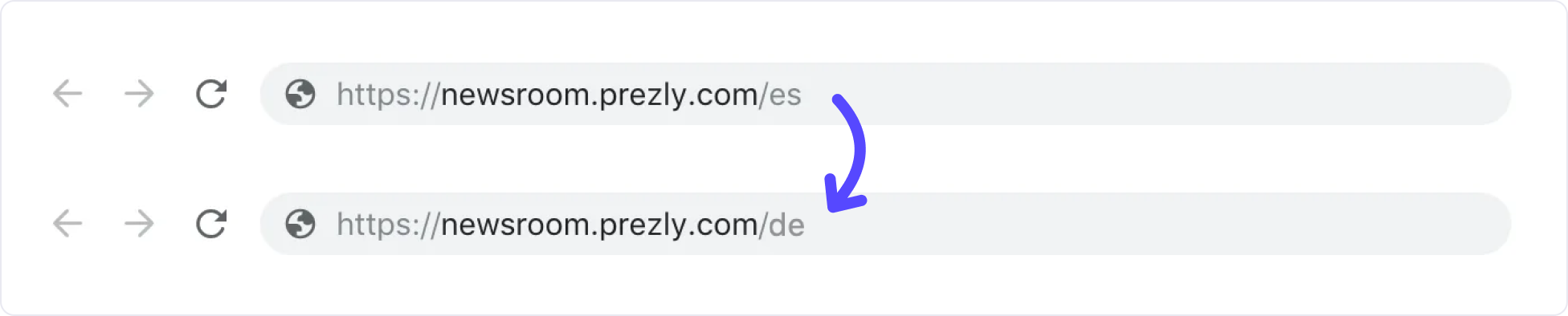
Each site translation comes with its very own URL slug, called a shortcode. These shortcodes allow you to share your site in the language you want.
Here is an example of how the shortcode for Spanish, "/es", looks in a site URL:

So to share the Spanish version of this newsroom with someone, you would use the link:
https://newsroom.prezly.com/es
For the full list of supported languages and their short codes, see this help article. When you select a language from the switch, you will see the correct shortcode for that language appear in the URL bar.
Site contacts
Site contacts allow you to integrate your team's contact information in your stories, campaigns, and pitches through the use of a contact card. Site contacts are a way of adding a contact point for you or your team directly in your Prezly content.
Adding a site contact
To add a contact to your site, go to your Site dashboard: If you have one site, click Home in the side navigation, or if you have multiple sites, click Sites and then select the site you want.
From here, click the Settings tab and select Site contacts. Next, click on the Create site contact button and input the relevant information.
If you run a multilingual site, you can specify the contact's language. Additionally, you can determine whether the contact information should be visible on your site's homepage in the form of cards.
Once all the details have been filled in, click Save contact. Your contact will then be added to your site contact list.
Using site contacts in Stories, Campaigns, and Pitches
The site contacts you've created can be used in stories, campaigns, and pitches to provide extra information or a point of contact. To do this, click the [+] button in your editor and select the Site contact block.
This action will insert a block into your editor from which you can search and select the contact you want to include. You can add multiple contacts to a single story, campaign, or pitch.
Site contacts as email signatures
Site contact cards have an option do be displayed as a card or a signature. The card layout option includes a bordered card with the contact information, whereas the signature layout option presents a simplified version of the contact (smaller and borderless).
Each layout serves a distinct purpose. Cards (shown below) are better suited for integrating into the content, while signatures are best placed at the end of your content. For example, the signature layout is an excellent choice for adding an email signature to your campaigns and pitches.

Kate Bystrova
The site contact card's displayed in emails may differ from the one shown in your editor due to constraints set by email platforms.
Furthermore, the layout of the site contact card can change based on your chosen theme. In older, deprecated, or custom themes, the signature layout may not be prominent in Stories, although it will function for Campaigns and Pitches.