
Manage team & permissions
Manage team access to specific areas of Prezly.
Invite your team to Prezly and start collaborating on your contacts, stories, campaigns and more. You can also determine what each user can access in your account using user permissions – particularly useful when working with multiple clients and external parties.
Invite a new team member
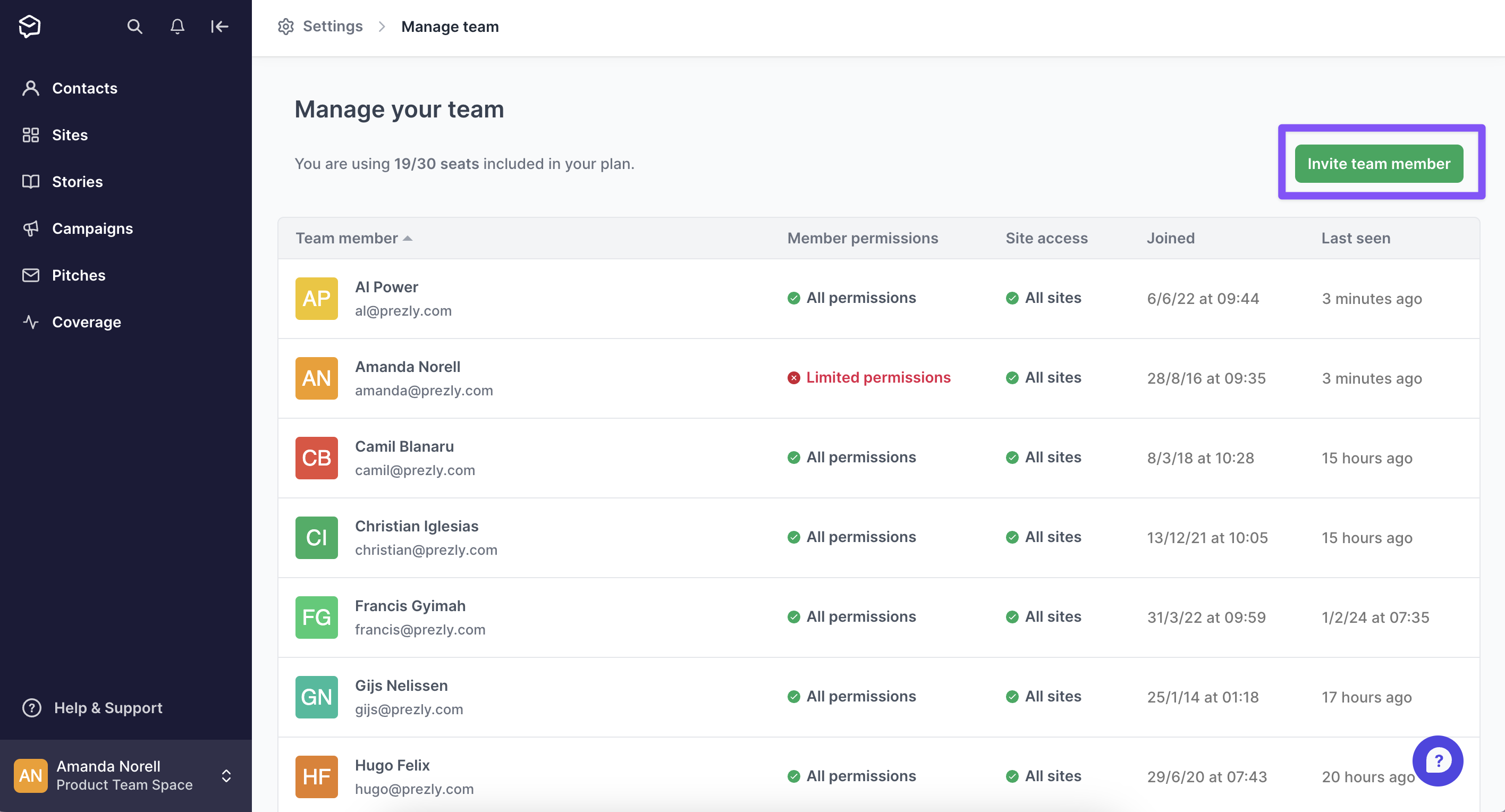
- Click on your account name in the upper-left corner of Prezly and select Manage team from the drop down menu
- Click the green Invite team member button to bring up an overlay where you can enter the email of the team member you want to invite. If you're on a Standard or Enterprise Plan, you will also be able to define the user permissions at this stage
- Click Send invite and an email with a link to join your Prezly account will be sent to your new team member
Your colleague will be marked as inactive until they accept your invite.
If you can't see the option to send an invite, it means you don't have available user seats in your subscription.
In this case, you can disable a user that is no longer in use to create space in your account, or purchase an additional user seat. Please contact our support team through the in-app messenger for more information about that.
Resend an invite
To resend an invitation email:
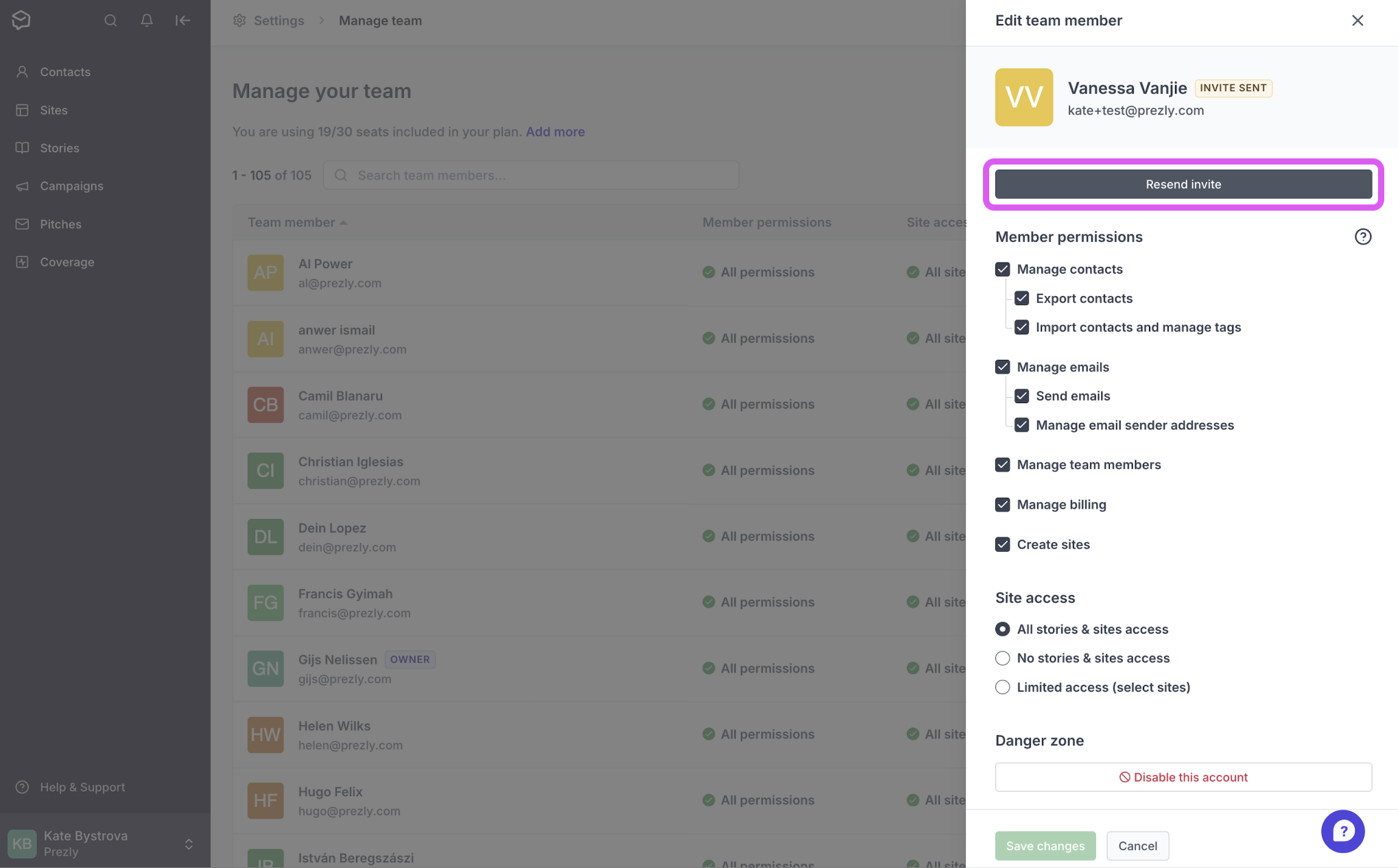
- Click on the name of the team member in the table on your Manage team page
- Click Resend invite in the overlay that appears:
Disable a user account
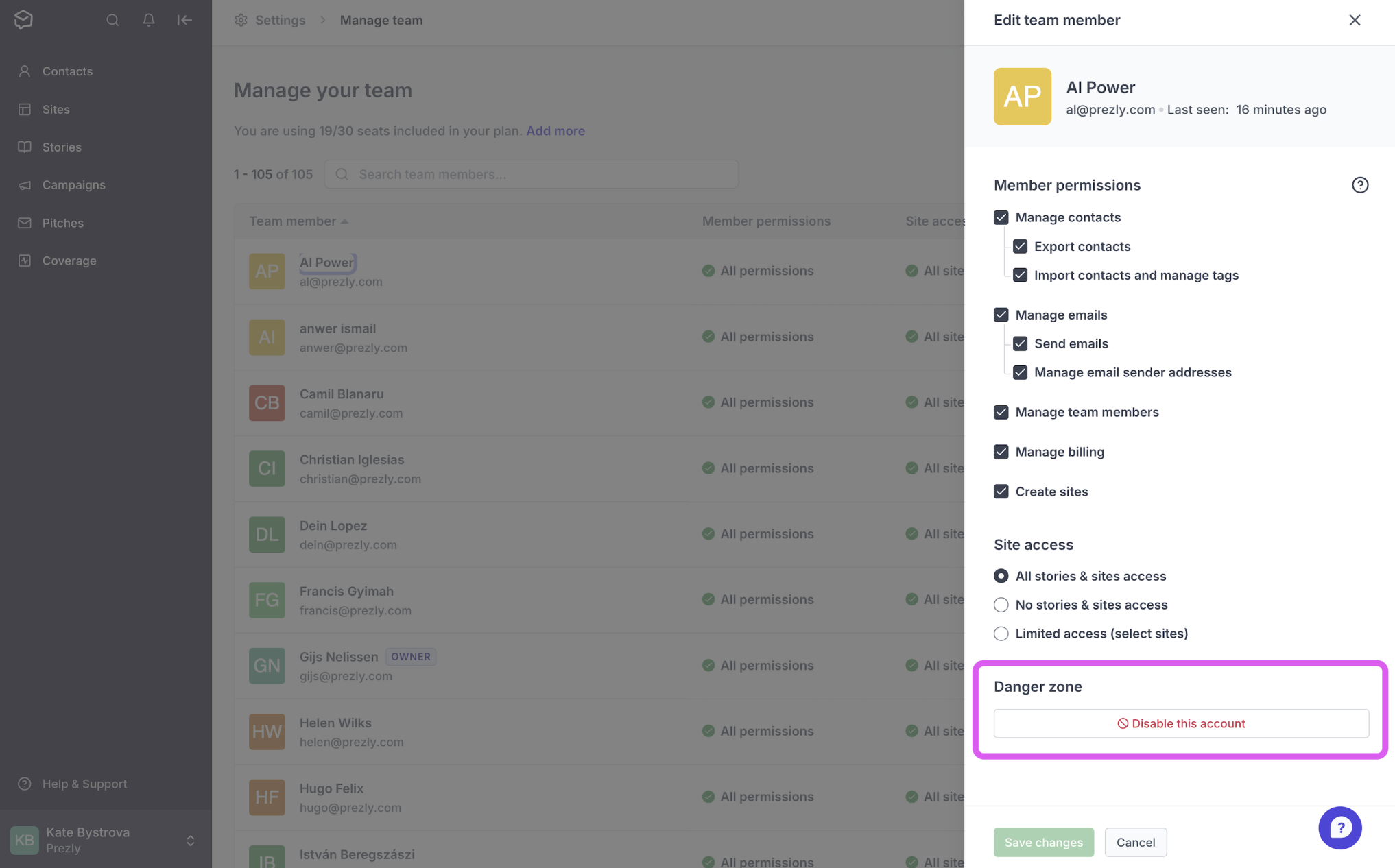
To remove a user from your account, click on their name in your Manage team settings, and then click the Disable this account button at the bottom of the righthand panel.
Disabling a user account immediately revokes that person's access to your Prezly account.
The user's details will not be deleted, and records of any previous activity – for example, interactions they've had with your contacts – will be retained.
Disabled user accounts will appear greyed out at the bottom of your team list, and can be re-enabled at any time by clicking on their name and selecting Enable account.
Re-enable a user account
You can restore a user's access to your account by scrolling down to their name in your Manage team table, clicking their name, and then clicking Enable account.
Manage user permissions
This feature is only available for Standard and Enterprise plans. To upgrade your plan, go to your plan settings.
By default, all team members have access to your full Prezly account. You can limit each user's access to specific parts of your account using your Manage team settings. These settings are split into two sections:
- Member permissions: allows you to restrict team member access to specific areas across contact management, email campaigns, site creation, and account settings
- Site access: grant or restrict individual access to your Prezly sites
You can set user permissions when you invite a team member to join your team in Prezly, or edit permissions for an existing teammate by clicking their name in the list on your Manage team page.
Member permissions

- Manage contacts: allows the user to manually add or update contact details in your CRM
- Export contacts: allows the user to export contact lists via Contacts and campaign reports
- Import contacts and manage tags: allows the user to import contact lists and create/merge/edit/delete contact tags
- Manage emails: grants the user access to the Campaigns area of Prezly
- Send emails: allows the user to send email campaigns and pitches
- Manage email sender addresses: allows the user to edit sender addresses
- Manage team members: allows the user to edit team permissions and add/remove other users
- Manage billing: allows the user to access and change billing details
- Create sites: allows the user to create new sites in your account
It is important to note that a user can still see your contacts unless you disable their access to both Manage contacts and Manage emails.
If both Manage emails and Manage contacts permissions are unchecked, the user will be unable to see any contact details in your account.
Site access

- All stories & sites access: enables the user to access all sites and stories
- No stories & sites access: fully disables user access to all sites and stories
- Limited access (select sites): allows you to select the sites the user can see and access
Account sharing among teammates
What is account sharing?
Sharing account or login details with a teammate and having them sign into Prezly is considered account sharing. Simply put, it refers to a single pair of credentials that multiple users - sometimes across multiple locations - use to access the tool.
Account sharing can lead to a series of complications, from security issues to incorrect logging within your Prezly account. It's one of the reasons we prohibit it in our Terms of Service.
Prezly is intended to be used by one person per user account. If you want to invite additional teammates to join you in Prezly, you can do so through your team settings, as outlined above.
We understand that account sharing can make it easier to delegate tasks among teammates, but we strongly advise against sharing your account or password with anyone.
These days, most people are aware of the risks of sharing confidential information online. However, many still actively share their login credentials with teammates because they don’t fully understand the disadvantages of account sharing.
Why is account sharing a bad idea?
First of all, it’s important to keep in mind that the security and use history of your account information is your responsibility, which is why any data breach of your account is your responsibility, and activities performed on your account are your liability.
It may not be obvious from the get-go, but sharing account information with others can cause several problems. Here are a few reasons it’s a bad idea:
Security
We simply cannot guarantee the security of our customers if they start sharing usernames and passwords across the team. Oftentimes, people leave the company and then new people come on board, which means that you risk former employees or teammates sharing your information externally. In GDPR, it is our duty as a data processor to advise on security best practices and safeguard personal data.
Logging
With account sharing, it is impossible for us to know which user did what, like who made that last export or who sent that last email, for example. If an account is shared across multiple people, we cannot help our customers with these important questions.
Working together
Prezly helps you with your daily workflow, but since accounts are being shared, you can't see specifically who in your team recently reached out to which journalists. You can't see who sent that Campaign 3 months ago. You can't see who made that note on a specific journalists' profile. We've built Prezly as a great tool for teams to collaborate on managing Contacts and publishing Stories, and having individual accounts for each teammate helps teams keep track of each person's activity.
Is account sharing allowed in Prezly?
No.
When you create an account, only you are allowed to access the account that is registered in your name. Account password sharing among teammates is actually a direct violation of our terms of service and condemns any exchange of accounts between individuals.
We understand that account sharing can make it easier to delegate tasks among teammates, but we strongly advise against sharing your account or password with anyone and we recommend disabling a teammate in order to replace them with another one or adding an extra seat to your Prezly account.
Please contact support@prezly.com to learn more about managing or adding users to your account.
Account owner
On every Prezly account, one team member has the role of account owner, meaning they are primarily responsible for the account.
The creator of a new account is automatically assigned as owner. On existing accounts, it's typically the oldest active user who has this role.
How to see who your account owner is
See who is the account owner by clicking on your workspace name (top-left of the screen) > Manage team, and find the team member with a badge next to their name.
What it means to be an account owner
The account owner role differs in a few ways from a regular Prezly user:
- The account owner user can't be disabled – they must first personally reassign the ownership to another team member (read below)
- The account owner is the primary contact person for organizational matters such as subscription changes and billing
- The account owner needs to have all permissions enabled (only applicable to Core and Premium plans)
Reassigning ownership
The owner can personally reassign the ownership to another team member by visiting your Manage team settings (which may be found by clicking your name in the bottom-left of the screen), clicking the team member's name, and then clicking Make account owner at the bottom of the panel.

There can only be one owner per account, so the current owner loses their ownership as soon as they reassign it to someone else in their team.
What happens if the account owner leaves the team without reassigning ownership?
If the account owner user, for some reason, personally can't reassign the ownership, contact support and we will help you out.