Contact search, filters & views
Contact search filters & views are powerful Prezly tools. Filters allow you to find the exact contacts you need so you can include them in views or tag them as you see fit. Saving these filters as views enable you and your team to reuse them as needed.
Using filters to search for contacts
To find specific contacts in your CRM, you can:
- Use the search box from within the Contacts grid
- Select a predefined view in the top menu bar
- Use advanced filtering, where you can add multiple filter rules

There is a wide range of rules you can use to narrow down the search for specific contacts, such as Tag, Country, Outlet/Publication, Language & Address, Social Media, Notes & Coverage, and more. You can even filter by who in your team the Contact(s) were Created By.
Useful tips on using filters for contact management
1) Save a search for future use
If you are likely to need to search for the same contacts in the future, you can easily save search criteria as views, so that the contacts that match a certain group of filters will appear on the left sidebar.

2) Keep your contact list clean
Use the Bounced filter to see which contacts have issues with their email addresses, so that you can remove or update their information.
3) Share filter search results with teammates
Every search creates a unique and shareable URL, so if you want to share the search results after applying custom filters across Prezly's features (Contacts, Stories, Campaigns, or Coverage) with your teammates, you can easily copy the URL and share it with them.
When they click on the link, they should see the same search results, as long as they have appropriate permissions assigned in Team Management.

The full list of contact filters by subtype
Common filters
Filter | Values | Operators |
|---|---|---|
Click rate | Percentage | Equal = | Greater > | Greater than or equal >= | Less than < | Less than or equal <= |
Function / title | Alphanumerical | Multiple | Any of these | None of these |
Media type | Alphanumerical | Multiple | Any of these | None of these | All of these |
Number of linked contacts | Numerical | Equal = | Greater > | Greater than or equal >= | Less than < | Less than or equal <= |
Number of linked organizations | Numerical | Equal = | Greater > | Greater than or equal >= | Less than < | Less than or equal <= |
Open rate | Percentage | Equal = | Greater > | Greater than or equal >= | Less than < | Less than or equal <= |
Organization | Alphanumerical | Multiple | Any of these | None of these | All of these |
Periodicity | Alphanumerical | Multiple | Any of these | None of these |
Tag | Alphanumerical | Multiple | Any of these | None of these | All of these |
Contact information
Filter | Values | Operators |
|---|---|---|
Email address | Alphanumerical | Any of these | None of these | All of these |
Has multiple emails | Yes | No |
|
Number of emails | Numerical | Equal = | Greater > | Greater than or equal >= | Less than < | Less than or equal <= |
Type | Person | Organisation |
|
With email address | Yes | No |
|
Contact management
Filter | Values |
|---|---|
Discovered relations | Yes | No |
Duplicate | Yes | No |
Personal information
Filter | Values | Operators |
|---|---|---|
First name | Alphanumerical | Is | Is not | Contains | Does not contain |
Gender | Male | Female | Unspecified | Is | Is not |
Last name | Alphanumerical | Is | Is not | Contains | Does not contain |
First name | Alphanumerical | Is | Is not | Contains | Does not contain |
Language & address
Filter | Values | Operators |
|---|---|---|
City | Alphanumerical | Any of these | None of these |
Country | Alphanumerical | Any of these | None of these |
Language | Alphanumerical | Any of these | None of these | All of these |
State / province | Alphanumerical | Any of these | None of these |
Social media
Filter | Values | Operators |
|---|---|---|
All | Alphanumerical | Is | Is not |
Success metrics
Filter | Values | Operators |
|---|---|---|
Click rate | Percentage | Equal = | Greater > | Greater than or equal >= | Less than < | Less than or equal <= |
Coverage | Yes | No |
|
Number of coverage | Numerical | Equal = | Greater > | Greater than or equal >= | Less than < | Less than or equal <= |
Open rate | Percentage | Equal = | Greater > | Greater than or equal >= | Less than < | Less than or equal <= |
Subscribed to | Site (Dropdown) | Is | Is not |
Status
Filter | Values | Operators |
|---|---|---|
Bounced | Yes | No |
|
Data request | Incomplete Requests | Complete Requests | Deletion Requests | Information Requests | Data Correction | Other |
|
Last contacted | Date (Dropdown) | Is after | Is before | Is exactly |
Reported spam | Yes | No |
|
Subscribed | Yes | No |
|
Teammate | Yes | No |
|
Unsubscribed | Yes | No |
|
Notes & coverage
Filter | Values | Operators |
|---|---|---|
Coverage | Yes | No |
|
Notes | Yes | No |
|
Number of coverage | Numerical | Equal = | Greater > | Greater than or equal >= | Less than < | Less than or equal <= |
Number of notes | Numerical | Equal = | Greater > | Greater than or equal >= | Less than < | Less than or equal <= |
Activity
Filter | Values | Operators |
|---|---|---|
Created at | Date (Dropdown) | Is after | Is before | Is exactly |
Created by | Prezly User (Dropdown) | Any of these | None of these |
Last modified | Date (Dropdown) | Is after | Is before | Is exactly |
Import
Filter | Values | Operators |
|---|---|---|
Affected by import | Contact import (Dropdown) | All contacts that were created or updated as a result of running a specific import |
Created by import | Contact import (Dropdown) | All new contacts that were created as a result of a specific import |
Updated by import | Contact import (Dropdown) | All contacts that were updated as a result of running a specific import |
Views
Contact views (previously known as segments) are a saved set of filters that let you view a subset of your contacts quickly and easily. You can use contact views to create and save a media list, for example.
This 1-minute video gives you a quick overview of how contact views work:
Contact views are saved at the team level, so anyone in your Prezly team can use them.
Default contact views
There are three default contact views:
- All
- People
- Organizations
These views will always show first in the views row, and are separated from the rest of the views by a vertical line.
Creating a contact view
You can create a contact view by clicking the + button next to your existing views, or by adding filters to an existing view and saving this as a new view.
This is demonstrated in the video above.
You can use any number of filters to create a view. A simple way of creating a view is by using multiple contact tags to filter your contacts.
Editing a contact view
You can edit a view's filters by:
- Changing its filters and pressing save, or
- Clicking the '...' three dots next to its name in the view's dropdown and clicking edit
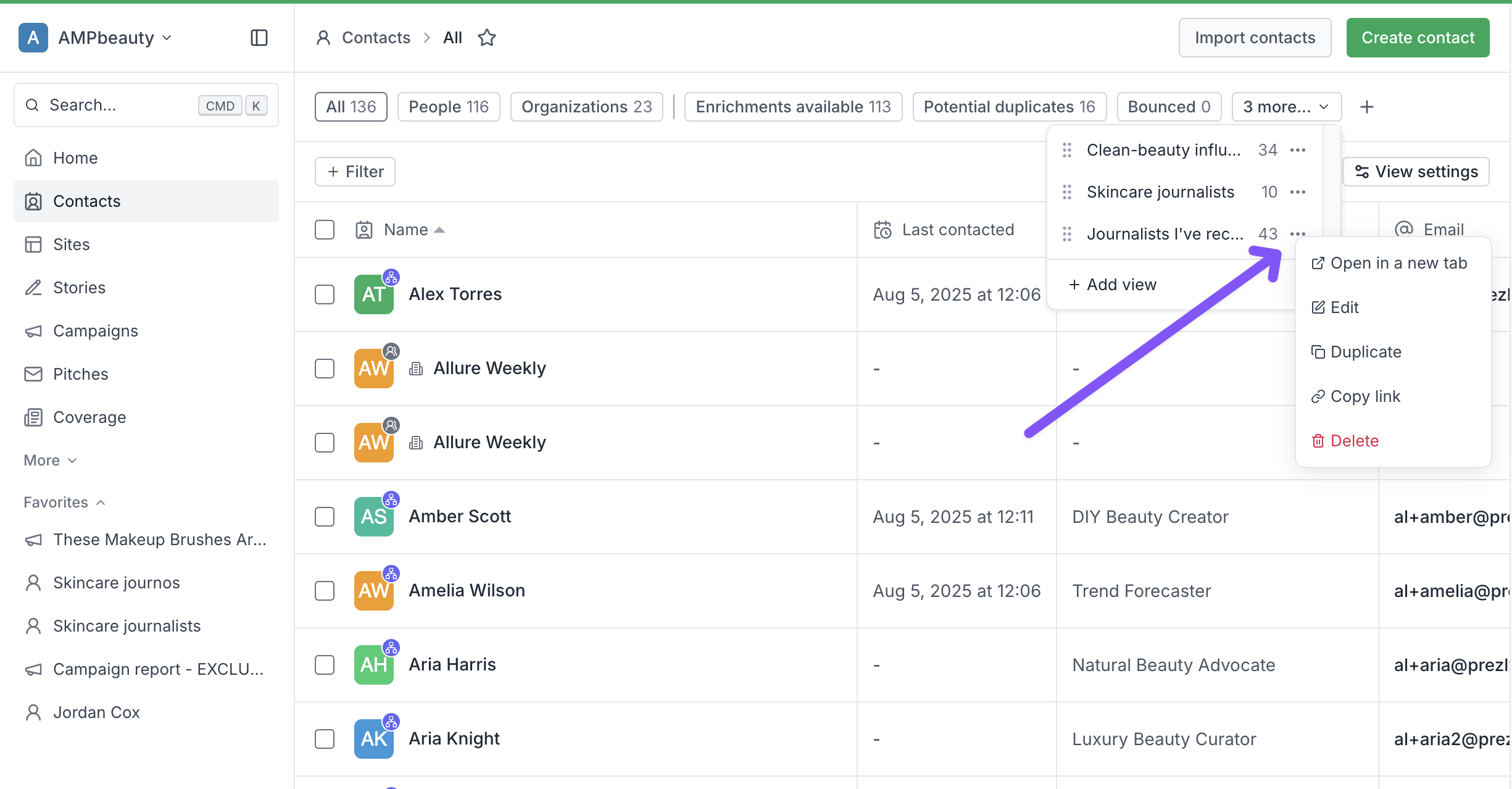
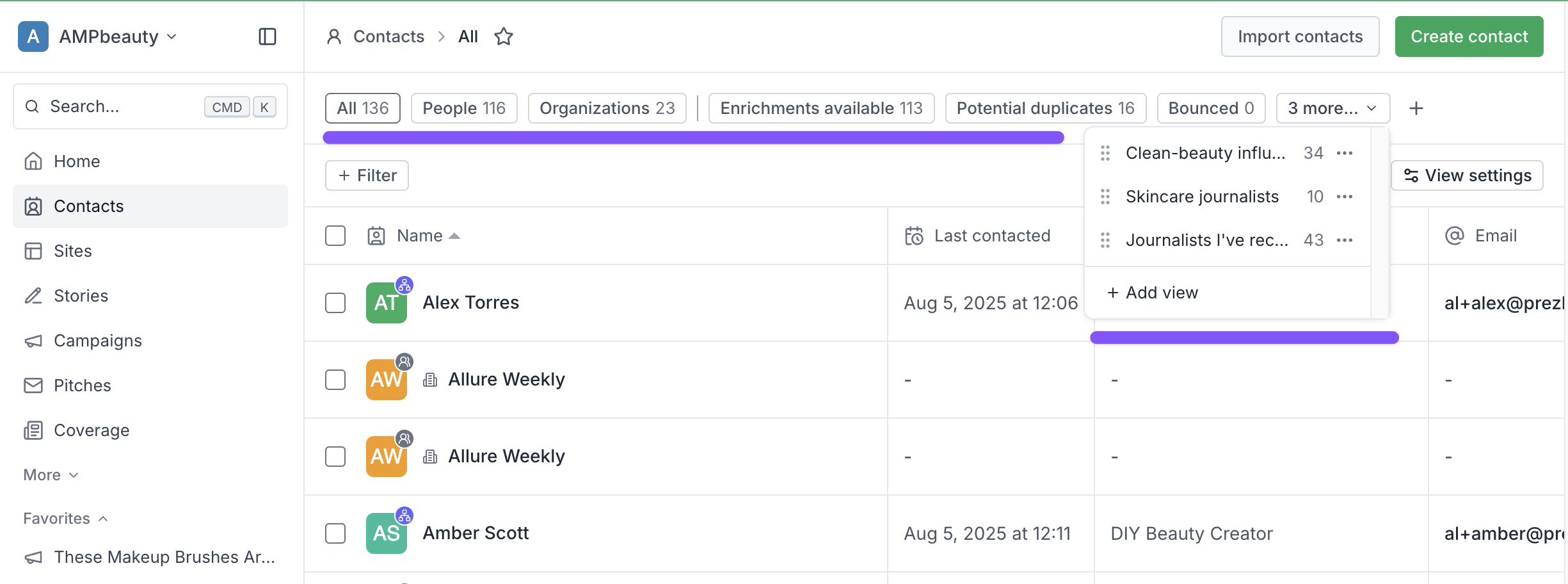
Where to find your views
Views are always shown at the top of the contacts screen, in the row above filters. If you have multiple views saved, use the more dropdown at the end of the row to access these.
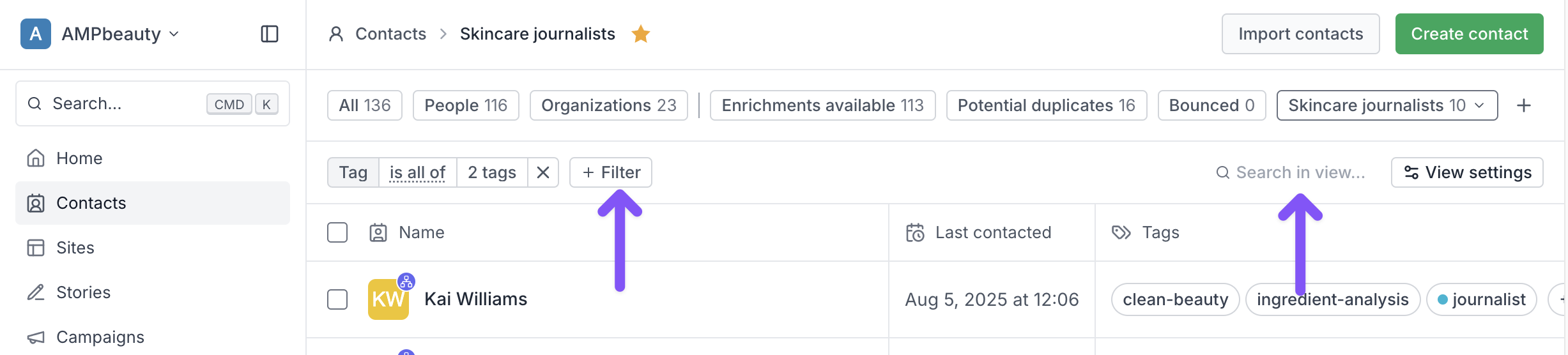
Searching within a contact view
If you want to see whether a particular contact is saved to a view, select the view you want and use the Search in view box at the top of the results grid. You can also use filters to narrow down results within the view.
Starring views for easy access
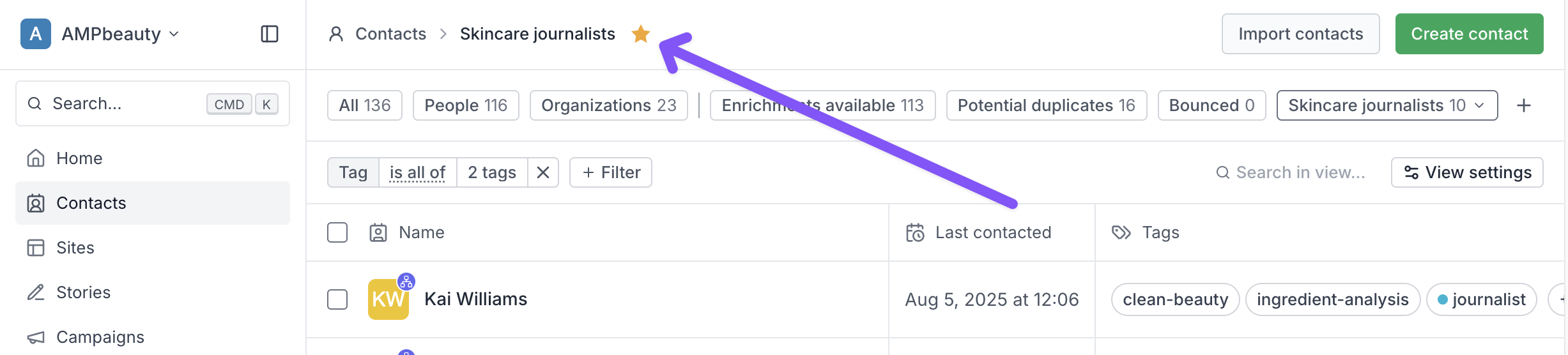
If you use a particular contact view frequently – for example, if it is your go-to media list – you can click the star next to the view name at the top of the screen to favorite it. This adds the view to your Prezly sidebar for easy access.
Starred favorites are saved on a user level, and are not shared across team members.
FAQs
Who can access my contact views?
Anyone on your team who has permission to view and manage contacts is able to see and edit your contact views.
Will my contact views be updated when I import new contacts?
Yes – any new contacts that match your view filters will be added to that view automatically.
For example: if you had a tag "journalists" that was included in a view, and you imported 20 new contacts and tagged them with the "journalists" tag, they would appear in that view automatically.
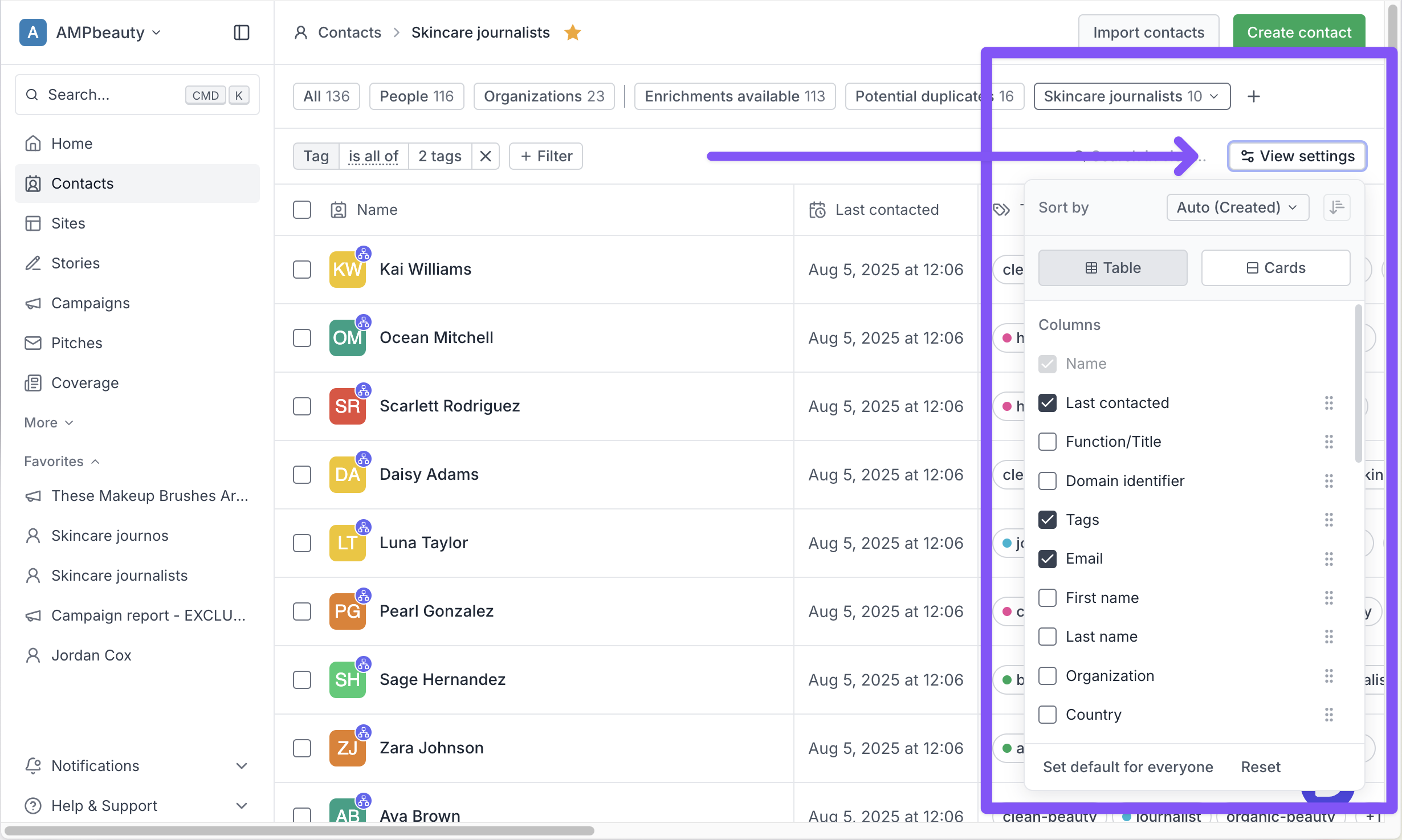
Can I change what fields are shown on my contact view?
Yes, you can choose what fields show in your contact view in view settings. These preferences are automatically saved for your user account. If you want to make these field preferences the default for everyone on your team, you can do so by clicking "Set default for everyone" at the bottom of the settings box.