
Log & manage coverage
Upload and manage your media mentions
Logging your media coverage is a great way to keep track of what people are saying about your brand. This is why we decided to add Coverage as one of the main features in Prezly – to help you stay on top of all your online or offline media mentions by linking them to specific Contacts, Organizations, and Stories.
You can easily upload, manage, and report all your media clippings and press coverage from your campaigns. Or if you'd like to show your clients or investors which media channels and journalists are buzzing about your brand, you can quickly send logged coverage to them using targeted email campaigns, all within one tool.
Log Coverage for a published story
On the Stories page, hover over the story you’d like to create coverage from and click the ••• button, then select Create coverage.
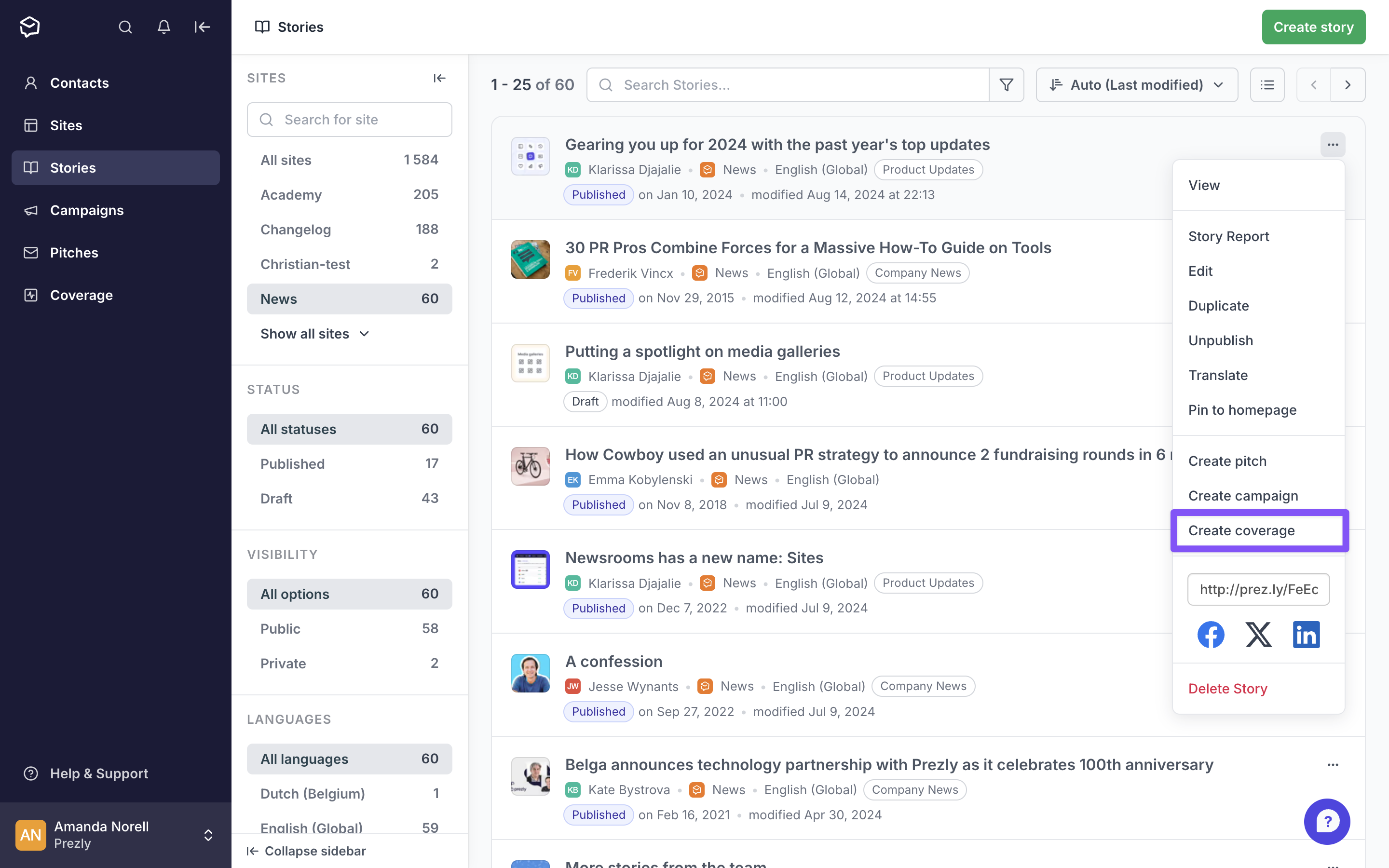
When you create coverage from a story, you'll see a modal where you can paste links to the coverage, or upload coverage files.
Then, to view coverage that is linked to a specific story, you can go to the Coverage page and filter by Story.
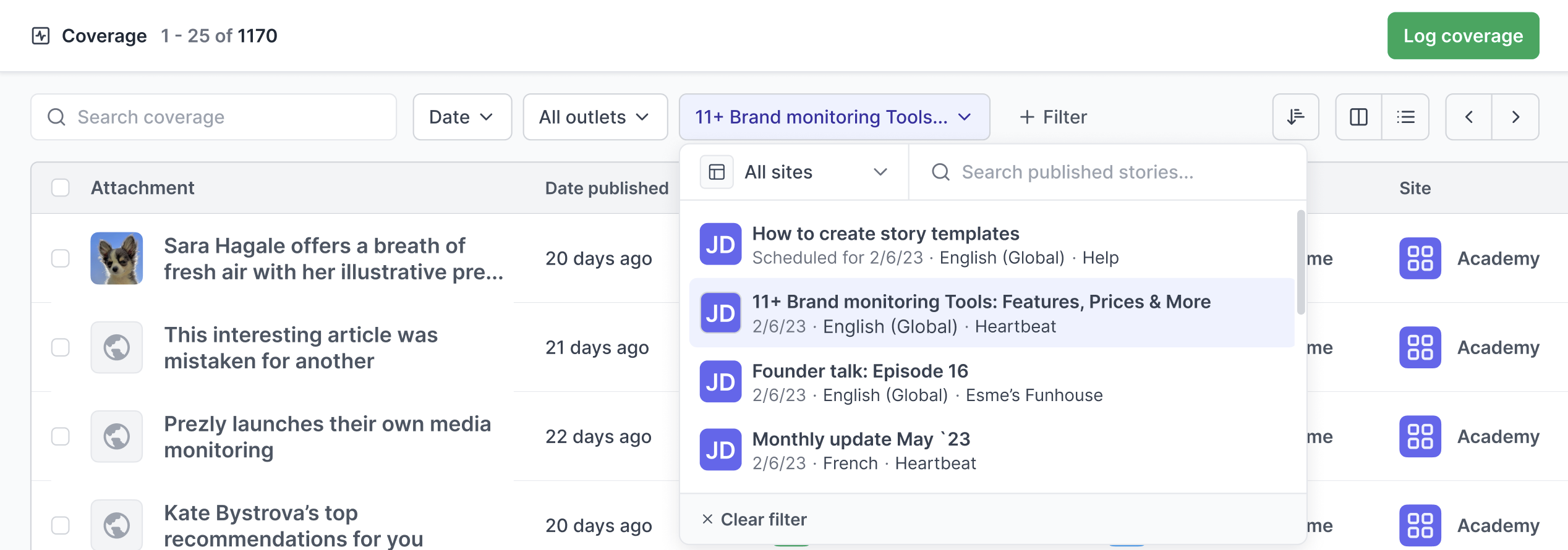
When logging coverage, it is helpful to add some details about the coverage item.
- When was it published?
- Which journalist wrote about your brand?
- Which story and site does that coverage relate to?
Prezly will provide suggestions for the author, outlet and related story fields, if we find a possible match among your contacts and stories.
Once you've logged coverage, it is automatically saved in the Coverage page where you can easily find and keep them organized.
Online coverage (web articles)
Simply paste a URL/link of an online article, a social post, or video. Prezly automatically imports the article's title, image (if available), and its short introduction.
Offline coverage (clippings, attachments)
Upload or attach files for your coverage. We support all major file formats for images, documents, and keynotes/powerpoints.
Supported files: pdf, doc, docx, xls, xlsx, rtf, txt, key, ppt, ppts, jpg, jpeg, gif, png
Tell Prezly more about your coverage
Add more information about a coverage item by filling in the details. These fields are optional but filling them in makes it easier for you to keep track of them all.
- Publishing date: Store the date your brand was covered.
- Outlet: Add the news outlet your coverage is related to. In Prezly, this is usually represented by the organizations that are linked to your contacts. For example CNN, New York Times, etc.
- Author: Match the coverage with an author from your contacts list.
- Site: Add the site where the covered story is published.
- Story: Add the story linked or related to the coverage.
Link Coverage to a contact
Whe you enter or pull in a coverage item, you have the ability to associate this with its author.
- For pulled in media coverage, Prezly can at times recognize and recommend known authors for you to associate and save.
- In case the field remains blank, you can still enter an author either directly in the coverage item's side menu or by clicking on the Edit button (see screen shot below)
- Either the author is already a part of or can be manually entered into your Contacts database

How to find logged coverage
If you've already logged a lot of coverage items (congrats on your mentions!), you can easily sort and find the item you need in different locations.
Coverage overview
When you access the Coverage page in Prezly, you'll be able to see all pieces of coverage that are added to your account.
You can use the filters above the list for a more specific search by type of coverage, site, outlet, published date and more.
Contact views
When you click on a contact or organization's full profile, you can choose to see only coverage in the feed. Click on the "All activity" dropdown and select "Coverage."
But I already have a coverage provider
You do? That's great! Why not set up an integration to automatically pull all that info into Prezly so you can have a holistic view of your outreach? It's easy – in that we do the set-up for you :)
Find out how to pull in coverage from Talkwalker, Auxipress, Belga and more →