
Coverage integrations
Connect your media coverage tracking tool to Prezly.
Get a complete overview of your brand mentions and earned media by integrating your existing coverage provider with Prezly.
This will allow you to automatically generate coverage clips that can later be linked to your stories, sites, and contacts in your Prezly account, giving you a clearer picture of who is talking about your brand and how well your distribution is performing.
The coverage integrations available in Prezly are:
- Prezly Media Monitoring (built-in)
- Google Alerts
- BelgaPress
- RSS Feed
- Auxipress/Talkwalker
Details on how to set up each of these coverage integrations below.

Setting up integrations
Whenever you set up one of the below integrations, it's good practice to:
- Define a name for your tracker (usually something that can easily identify it), paste the link you copied into the link field
- Optionally pick a site to associated coverage clippings with. Useful if you have multiple clients or subsidiaries in your Prezly account
- Decide if you want Prezly to automatically match/create authors and/or outlets
Google Alerts
Google Alerts is a free online tool that allows users to monitor the web for specific topics or keywords, providing real-time updates whenever your keyword is mentioned online.
With Prezly integrations, you can link your Google Alerts with your Prezly account so that new mentions will automatically appear inside the Coverage area of your account.
Here's how to link your Google Alert to your Prezly account.
- Go to Google Alerts and create an alert that you want to track. There's a helpful guide on how to do this online
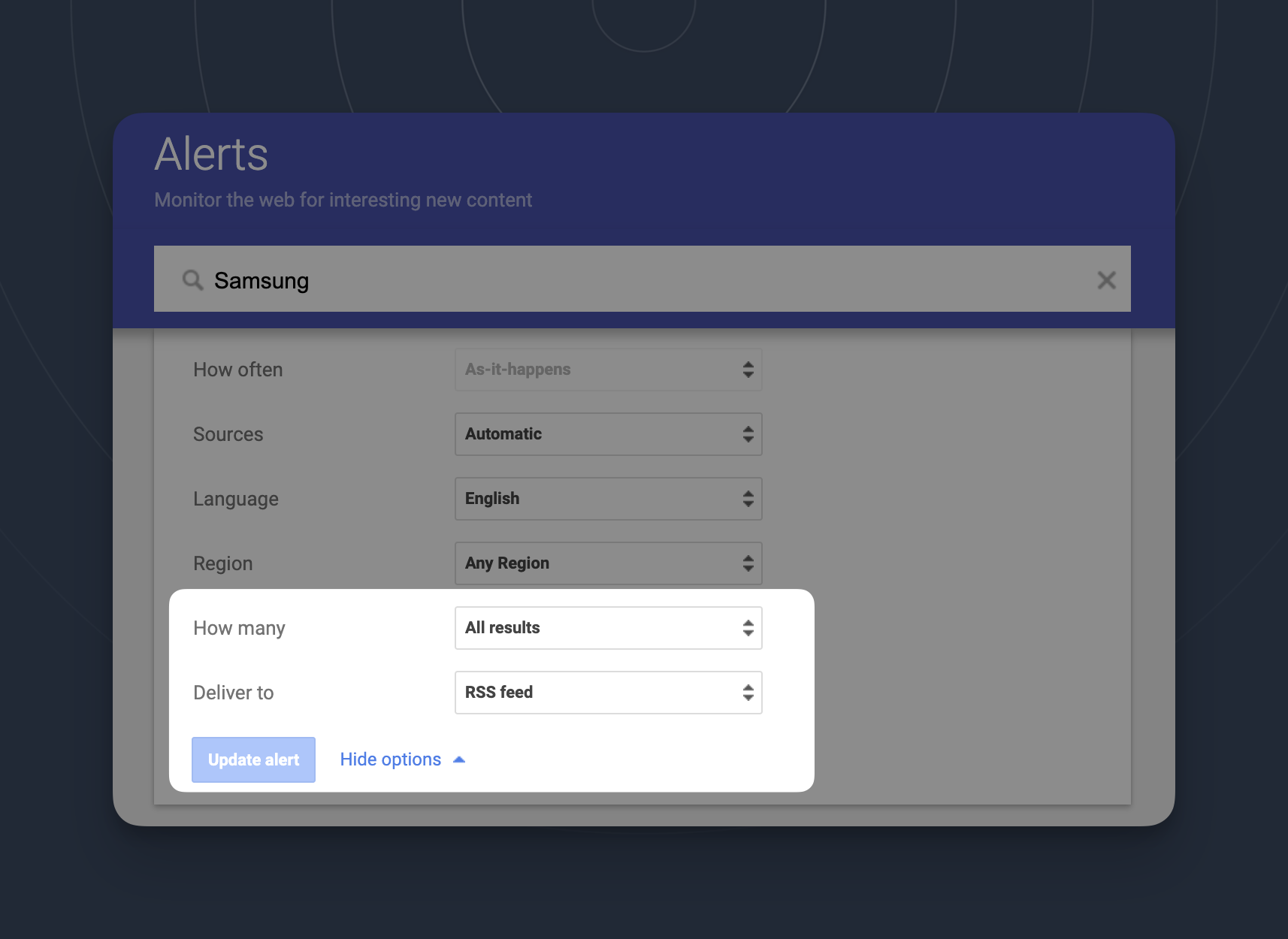
- Click on the pencil icon to edit your alert and set it to Deliver to: RSS Feed
- Click "update alert"
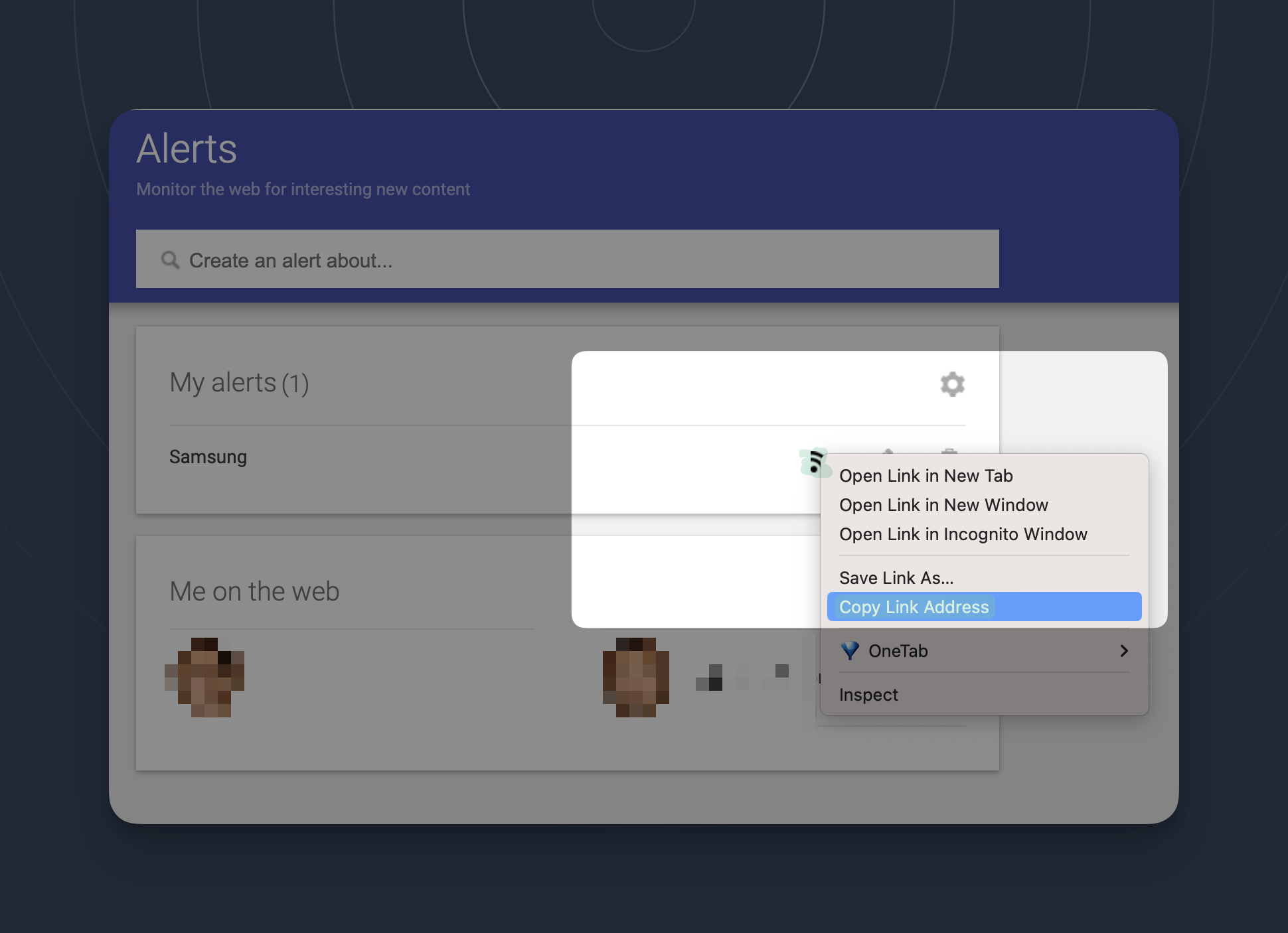
4. Right-click the RSS icon (only available if you correctly followed step 2) and copy the URL address:
5. Go to your Prezly account settings and click Coverage integrations (or just follow this link)
6. Click Add Google Alert under the Google Alerts section:

Once you've added your Google Alert to Prezly, your first pieces of coverage will start to sync to your Coverage area within a few minutes.
Prezly will automatically fetch the 20 most recent items from your Google Alerts feed, after which the integration will run every few hours.
BelgaPress
How to connect your BelgaPress account to Prezly:
- Log into your Belga Press account and go to Explore → Boards
- Find the board that you want to integrate, then click "Change board preferences" in the top right corner of your screen.
- Under the "Advanced"* section, you will find the "Quick integration link". Please copy this link.
- Log into your Prezly account and go to Settings → Coverage integration
- Find Belga on the provider list and click “Connect Belga”. If you already have a tracker setup for Belga, click “Add new tracker” instead.
- Then, define a name for your tracker (usually something that can easily identify it), paste your “Quick integration link” into the link field, pick the site to which that tracker will relate, and add some notes (optional) to the tracker (e.g., what types of news are coming in).
- Click “Add tracker” at the bottom of the panel, and your integration will be setup. We will start by making an automated run that will fetch the 20 most recent items and add them to your Coverage page.
If you do not see the "advanced" section, you may need to request it be enabled by emailing belgapress@belga.be (more about this)
RSS Feed
Automatically import articles from an RSS feed into Prezly.
How to connect a RSS feed to Prezly:
- Login into your Prezly account and go to Settings → Coverage integration
- Find Google Alerts on the provider list and click “Connect RSS Feed”. If you already have a tracker setup for RSS Feeds, click “Add new tracker” instead.
- Then, define a name for your tracker (usually something that can easily identify it), paste your “Quick integration link” into the link field, pick the site to which that tracker will relate, and add some notes (optional) to the tracker (e.g., what types of news are coming in).
- Click “Add tracker” at the bottom of the panel, and your integration will be setup. We will start by making an automated run that will fetch the most recent items and add them to your Coverage page.
Auxipress / Talkwalker
- Log into your Universal Insights dashboard and click on the Launch IQ App button

2. Open the three-dot "kebab" menu and select Embed in another platform:

3. Select the JSON option, select PUBLISHED_RECENT in the Sort by drop down and finally click on Embed widget:

4. Go to the Coverage area of your Prezly account and click Media monitoring (or just follow this link)
5. Click 'add new integration' under the Auxipress/Talkwalker section
Within a few minutes your first pieces of coverage will start to come in under your coverage tab.
FAQs
How do I find the RSS feed for a site I want to track?
There's a good chance that any website you visit is a WordPress site (40% of sites are built on Wordpress), and all of those sites offer RSS feeds that are easy to find.
- To find a WordPress RSS feed, simply add /feed to the end of the URL; e.g., https://justinpot.com/feed. I do this any time I visit a website that I'd like an RSS feed for – it almost always works.
If it doesn't work, here are a few tricks for finding RSS feeds on other sites.
- If a site is hosted on Tumblr, add /rss to the end of the URL. Like this: https://example.tumblr.com/rss
- If a site is hosted on Blogger, add feeds/posts/default to the end of the URL. Like this: example.blogspot.com/feeds/posts/default
- If a publication is hosted on Medium, add /feed/ before the publication's name. So medium.com/example-site becomes medium.com/feed/example-site
- YouTube channel pages double as RSS feeds. Simply copy and paste the URL for the channel into your RSS reader. You can also find an OPML file for all of your subscriptions here