
Handle email deliverability
Custom sender domain
If your sender address is using a custom sender domain, first thing is to make sure it's properly verified. See Sender Addresses
How Prezly enhances your email deliverability
Our measures that keep your emails out of Spam folders
- We allow you to set up SPF and DKIM authentication for better email delivery
- Optionally we can set up a separate email IP, which is used only by you
- We use SendGrid – a professional and proven email delivery system
- We have a dedicated IP address to ensure optimal delivery of every email
- We monitor bounces, spam reports and don't send emails to addresses we know that are going to bounce (ISPs don't like that)
- We continually monitor blacklist services
- We get notified every time we receive a spam report (it doesn’t happen very often!), so we can take appropriate action immediately
- Our email layout is professional, clean, and can’t be customized, reducing the potential for spammers to take advantage of our templates
- We make sure the balance between visuals and text remains healthy
- Every customer is vetted before they get access to the email functionality. This is the absolute best way to keep spammers out
- We have a clear unsubscribe link, so anyone can opt-out at any time and for any reason. This keeps us compliant with spam and email privacy laws and helps minimize spam complaints
Things that you can do 💡
While we've taken many measures to promote email deliverability. The most important of these is to build a good reputation by following certain email best practices (i.e. don’t spam your contacts!).

Preventing your emails from being marked as spam
A few things you can do to keep your email deliverability high.
Follow the rules of the game
- Do not send emails to addresses unless you have permission to
- ISPs often set up spam-catcher addresses, which look like ordinary email addresses, in order to lure spammers. Once you send an email to that address, your IP will be blacklisted.
Keep your email list clean
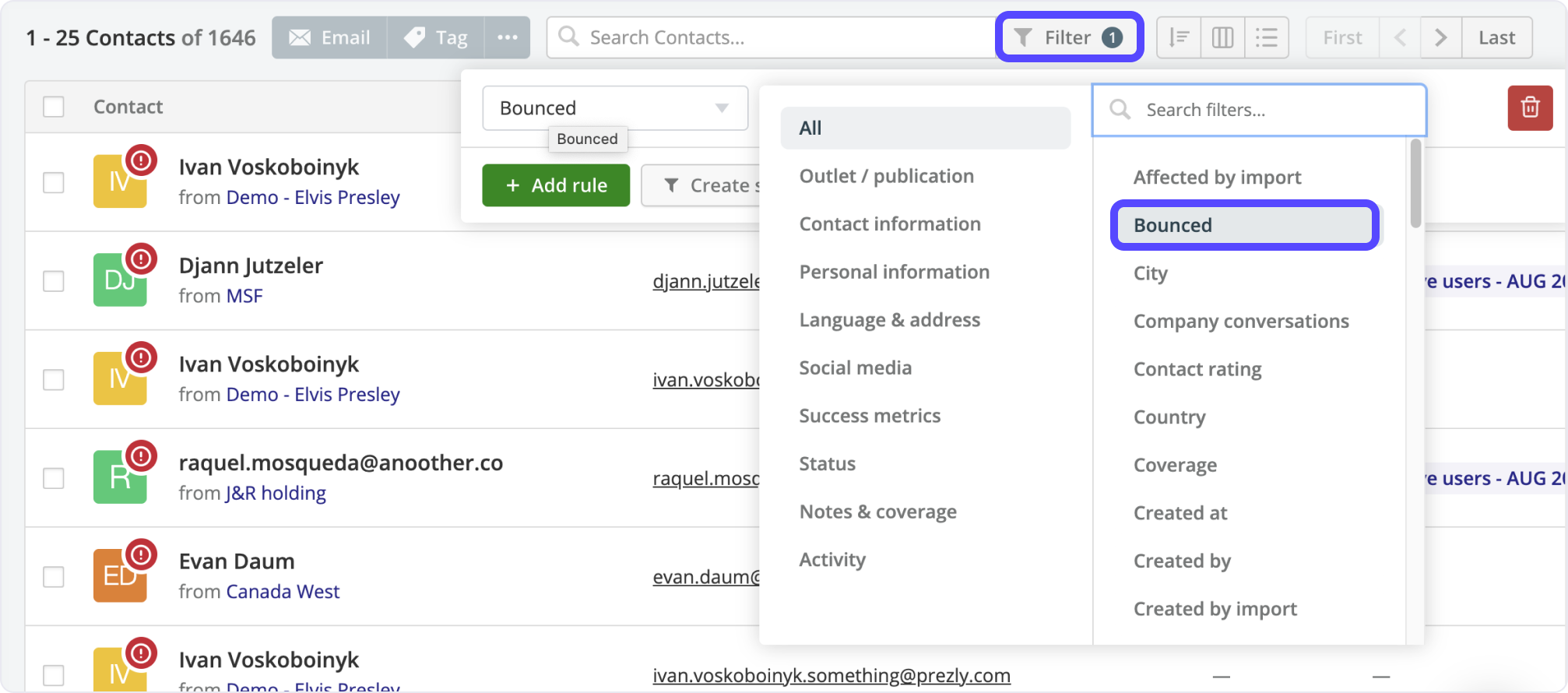
- Regularly filter out and remove bounced email addresses from your email list. Sending to a lot of invalid addresses is marked as suspicious behavior by ISPs
- You can view which contacts have bounced emails by using the filter "Bounced" in the filtering section
Keep your unsubscribed addresses in Prezly
We don’t count people who have unsubscribed as part of your total contacts
- Keeping them in our system ensures that you won’t email them again by accident, and if you reimport them by accident, they’ll stay unsubscribed
- If you have other lists that you also use outside Prezly, be sure to remove your unsubscribed contacts from those lists, as well
Use a clear subject line
- Vague or overly promotional subject lines increase your risk of ending up in the spam folder
- Make sure your subject lines are clear, direct, and preferably brief
- If you’re a brand or working for a brand, try using your brand name in the email’s subject line, too
Keep your sender name consistent
- Send emails from the same sender name as much as possible. Inconsistent sender names are a red flag for ISPs
Taking these steps will improve your overall email deliverability rate and dramatically decrease the chances of your emails ending up in a spam folder
Why are my test and internal emails ending up in spam?
What to do if you or others using your domain aren't receiving test campaigns in your email.
Your firewall settings
This is the most common reason for test emails failing.
Some work mailboxes are set up with strict spam firewalls that can block test emails if:
- The From and To addresses are the same, or use the same domain. The receiving server gets an email with a "From" that's from an email it manages, so it doesn't allow it. This means this is only an issue with the test email you send to yourself or colleagues, and will not affect emails going out to contacts outside of your company domain. To double-check this, try sending a test to a personal email
- Your are sending to multiple addresses at your company, which can be considered a spam attack
- The email includes placeholder or filler content, for example, Lorem ipsum text
How to fix it
The first two causes can be fixed by asking your IT team to whitelist emails sent from Prezly. A possible workaround in the meantime is to send your test emails to an email address outside of your work domain, for example, a free Gmail account.
Office 365 / Outlook flags test emails as spoofing attempts
An increasingly common issue with Microsoft Office 365 / Outlook accounts is that they tend to flag test emails – and any emails that use the same address for the From and To email fields – as spoofing attempts.
A bit of background:
What is spoofing?
Spoofing happens when someone fakes an email to make it look like it’s coming from a trusted sender – like your own domain or company – when it’s actually not. It’s a common tactic used in phishing scams and can confuse email platforms, especially when sending test emails or internal campaigns.
If your domain is being spoofed, it can harm your sender reputation and hurt your email deliverability, meaning your messages may end up in spam folders or get blocked altogether.
Since Prezly sends emails on your behalf (using your domain), sometimes email platforms – especially Outlook/Microsoft 365 – can misread this and flag it as suspicious. This tends to happen when you're sending an email From and To your own domain, like when testing campaigns or sending internal pitches.
How spoofing hurts deliverability
If someone is spoofing your domain, it can hurt your sender reputation – basically, your trust score with other email platforms. A bad reputation means your real emails are more likely to end up in spam folders or get blocked entirely.
Even if you’re not the one spoofing, it’s still your domain that suffers unless your email authentication is properly set up.
How Microsoft 365 handles spoofing
Microsoft 365 has built-in tools to detect spoofing. It checks each email using SPF, DKIM, and DMARC – these are technical records that help verify if an email has truly come from your domain.
When an email doesn’t pass these checks, Microsoft 365 might:
- Flag it as “spoofed” or “suspicious”
- Send it to the junk folder
- Block it completely, depending on your settings
How to fix it
One easy way to fix spoofing problems (especially with Prezly emails) is to whitelist Prezly’s IP addresses in your Microsoft 365 anti-spoofing settings. This tells Outlook that emails from Prezly are safe and trusted, so they’ll always go to the main inbox, not to junk or spam.
Doing this not only helps with test emails and internal campaigns, it also protects your domain’s sender reputation in general.
Setting this up isn’t the most user-friendly process, so we’ve created the following step-by-step guide to help. If you have trouble setting this up, your company IT team will be able to help.
Step-by-step guide to whitelist Prezly IP addresses for Microsoft 365
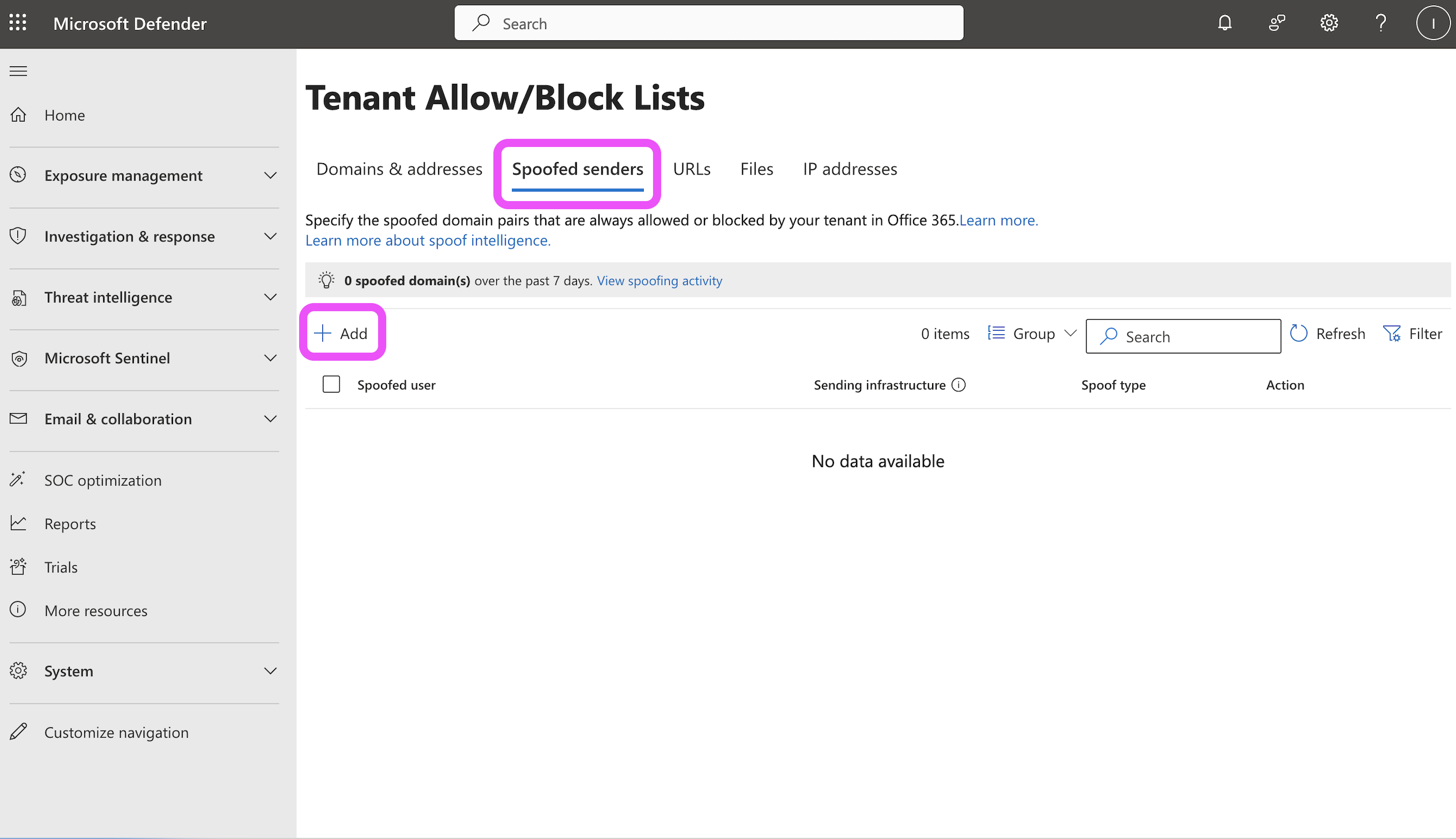
Access your spoofed senders list at https://security.microsoft.com/tenantAllowBlockList.
- Go to https://security.microsoft.com/tenantAllowBlockList
- Go to the Spoofed senders tab and click Add
- In the panel that appears, add the following 9 IP addresses that Prezly sends emails from in the format yourdomain.com, <ip address>, with one entry per line (see screenshot below):
- 149.72.126.3
- 149.72.244.118
- 149.72.36.94
- 167.89.10.227
- 167.89.63.175
- 208.117.48.146
- 159.183.227.26
- 159.183.229.211
- 159.183.229.212
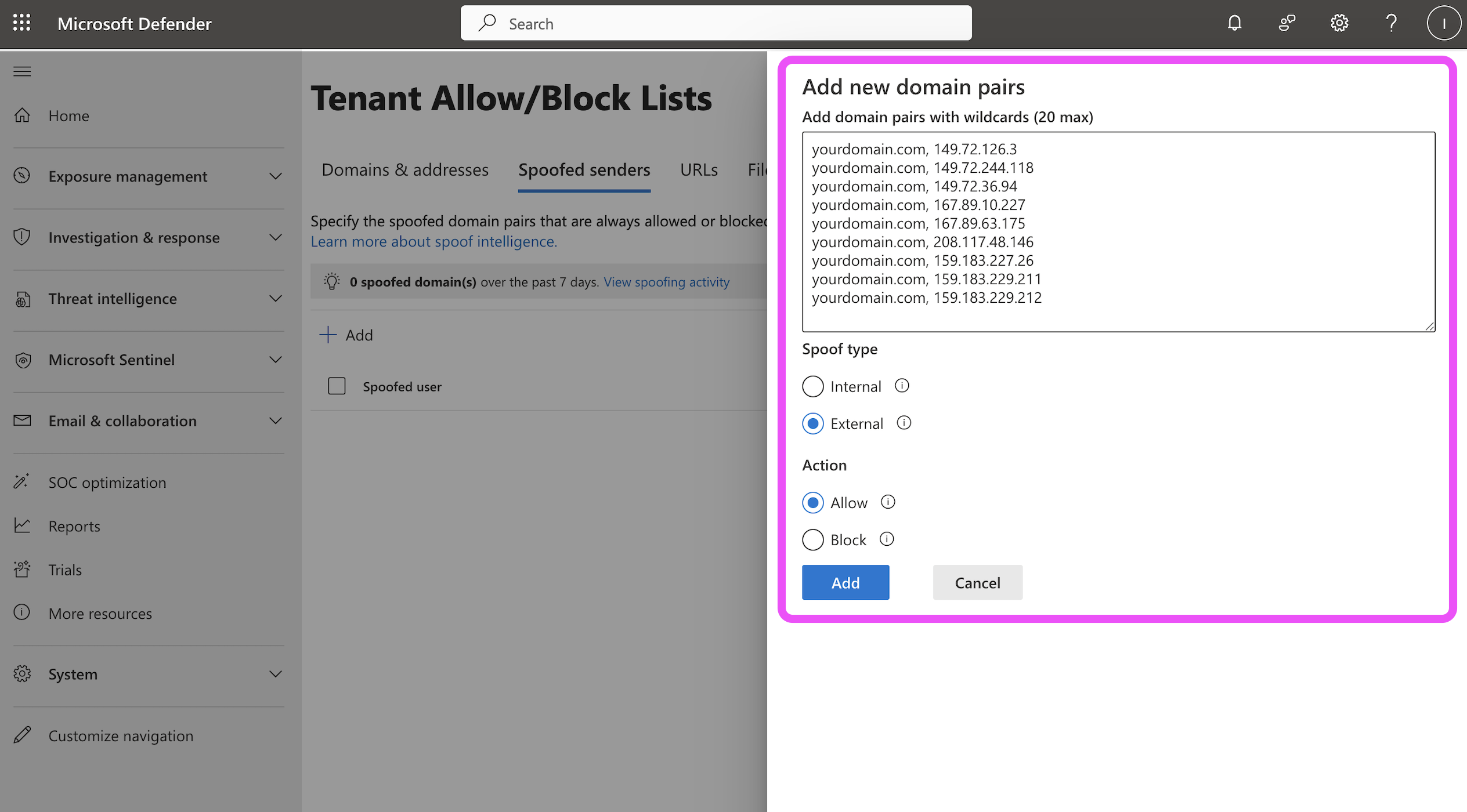
Add each of Prezly's 9 IP addresses, preceded by your domain URL.
4. Ensure that spoof type is set to External and the action is set to Allow
5. Click Add to finish your setup
And you should be good to go! 🎉
For more details please refer to the resource pages of your email management provider:
Why do I get bounced contacts when I send campaigns?
A high campaign bounce rate could indicate a poorly maintained media list
When a campaign fails to reach a particular email address because of a problem on their end – for example, the email address no longer existing or the receiving mail server being down – that email address is marked as bounced.
This bounce status is immediately reflected in your CRM and campaign report, and prevents new campaigns from being sent to that email. We do this because sending campaigns to emails that cannot receive your email would affect your deliverability rating and skew your campaign results.
- Email addresses reporting temporary challenges (such as quota or network issues) are retried for up to 72 hours, after which they are considered temporary or soft bounces.
- More serious error codes (such as mailbox full, or non-existent address) puts contacts in a permanent or hard bounce list.
After a certain time, we test the bounced email addresses again to see whether they recovered.
- Soft bounces are cleared ("purged") from the suppression list after 10 days.
- Hard bounces are cleared ("purged") from the suppression list after 90 days.
Using bought media lists
One reason that you might experience a particularly high bounce rate on campaigns is if you are using a media list that you purchased from an online database. This is because the information on such databases is often out of date, and the high number of people attempting to reach those emails can result in inboxes becoming overloaded and email addresses being taken down.
Unless very careful, using bought media lists can also have an impact on your spam rating and may breach the GDPR. These are some of the main reasons Prezly does not sell media lists. If you're interested, you can read more about the associated risks here.
If you are certain that the emails to which you are sending your campaigns are active and should not be bouncing, please contact us via the chat bubble in the corner of Prezly or email our support team.
I sent a campaign to myself, so why can't I see it in my inbox?
Short answer: speak with your IT team
Sometimes you'll want to include yourself in a campaign test for peace of mind, only to find that the campaign you sent to yourself never arrived.
Most of the time, this is down to your company's internal server settings.
Receiving an email from your own address – or the company domain – could look fishy to the folks down in IT, so they may have set up a filter to catch out such messages. This is also one reason that an email you send to your own address from Prezly could end up in your junk folder rather than your inbox.
If you experience a problem receiving a campaign test or mailing from Prezly, please contact your company IT team to see if they are the ones blocking it; most of the time, there is nothing we can do on our side.
However, if you're concerned that a campaign you've sent has not been delivered to your contacts, one of the following links might help you:
- Prezly status page – check that Prezly is running smoothly
- Campaign reports– learn what the different statuses in your campaign report mean
- FAQ: Why do I get bounced contacts when I send campaigns?
Why are my test emails being flagged as suspicious?
If your test campaigns are marked as "spam", "fake" or similar in your inbox, you may need to speak with your IT team
Some companies have a strict policy on email sending sources. So, even if you send a fully authenticated test email from your Prezly account, your company system may see an internal email coming from an external source and automatically mark it as suspicious. To test whether this is what you're experiencing, try sending the same test to your personal email address.
To fix the issue, you'll need to speak with your internal IT team about your company sending policy; there's nothing we can do on our end.
In the meanwhile, rest assured that this issue will not affect your external campaigns.