Set up MCP
Create a scoped personal API token, connect your MCP client, and verify a newsroom read.
Connect to the hosted Prezly MCP server with a personal API token. You need access to personal tokens in Prezly and a client that supports Streamable HTTP with a custom bearer token.
Create a personal API token
- Open the Prezly account you want the assistant to use. Go to Settings → API & integrations.
- Under Personal API tokens, select Add new token.
- Name the token after its client or purpose, so you can identify it later.
- Choose an expiry: 30 days, 90 days, or 1 year. The default is 30 days.
- Review the suggested MCP permissions. Remove permissions the assistant does not need; start with reads.
- Create the token and copy its value before closing the dialog. Prezly shows the value only once.
If the page shows an upgrade card instead, use View plans and upgrade or Talk to us to check access for your account.
Choose token permissions
A token's scopes limit actions your Prezly user can already perform. They do not add user permissions or access to other newsrooms. Basic account:read access is included automatically.
| Task | Read scopes to start with |
|---|---|
| List newsrooms and inspect their settings | sites:read |
| Find and read stories in a newsroom | stories:read, plus sites:read for newsroom lookups |
| Find and read contacts or contact tags | contacts:read |
| Inspect campaign summaries and aggregate performance | campaigns:read |
| Inspect campaign recipients | campaigns:read and contacts:read |
| Find and read pitches | pitches:read |
| Find and read coverage | coverage:read |
For changes, keep the reads needed to inspect the target and add the relevant :write permission. Story publishing uses stories:publish; campaign and pitch delivery use campaigns:send and pitches:send. Send permissions are not selected by default. Some workflows need related-resource scopes: creating or updating coverage also needs contacts:write because it can create contacts.
Some endpoints exclude personal tokens regardless of scopes. A client may still list their tools. Do not broaden a token simply to make every advertised tool succeed.
Connection details
| Setting | Value |
|---|---|
| Server name | Prezly |
| Transport | Streamable HTTP |
| URL | https://mcp.prezly.com/mcp |
| Authentication | Custom bearer token |
| Request header | Authorization: Bearer <PREZLY_API_TOKEN> |
Replace <PREZLY_API_TOKEN> with the token value in your client's private credential field. Do not put the token in a conversation, repository, browser code, shared document, or screenshot. Send one authorization header; avoid configuring both a bearer-token field and a static authorization header.
Prezly's hosted connection uses a fixed bearer token. It does not provide an OAuth sign-in flow. A client that supports only OAuth cannot use this connection directly.
Claude Desktop
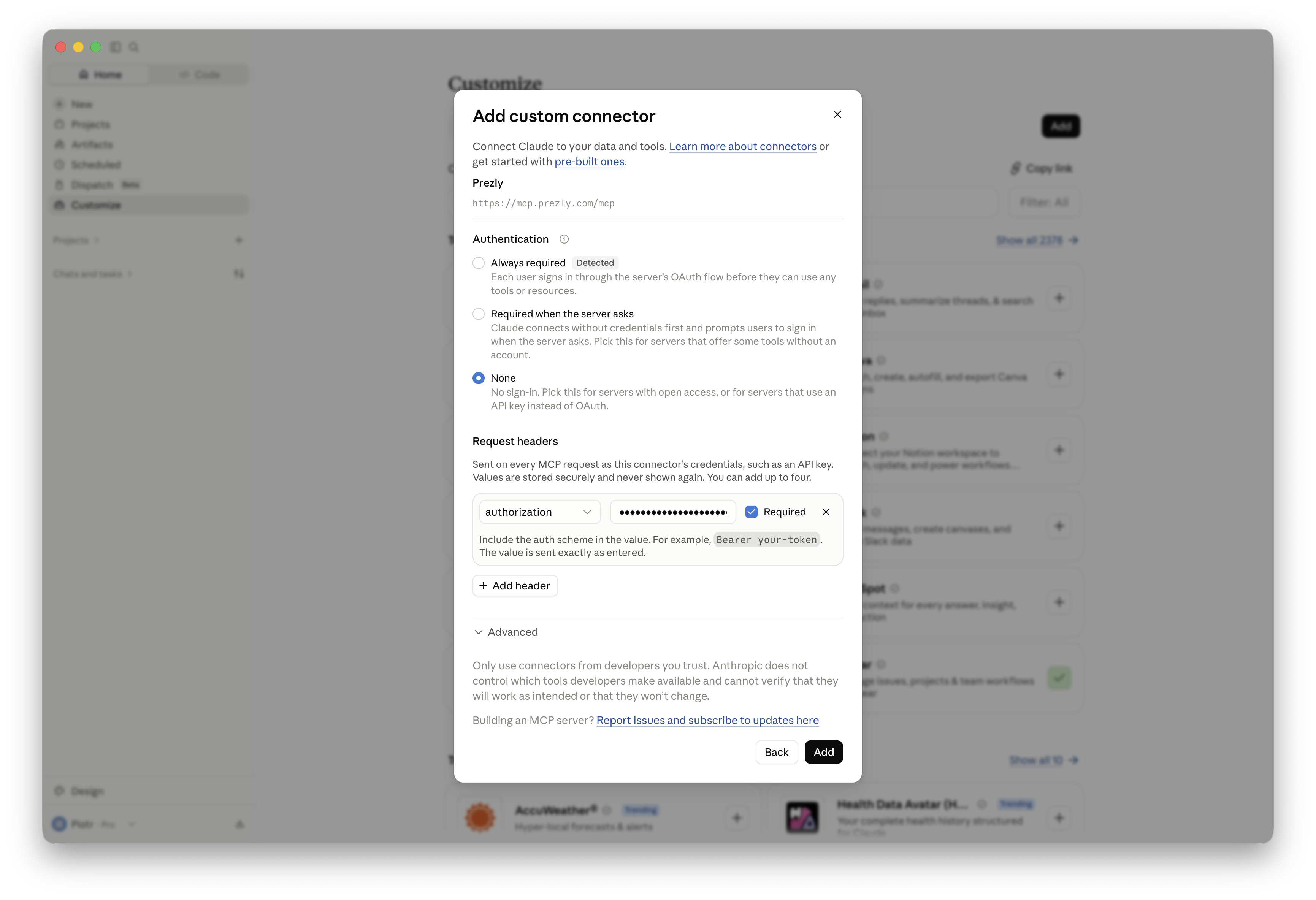
Add a custom remote connector from Claude's Connectors settings. Menu labels can vary by app version; the screenshots show the corresponding settings:
-
Enter the name Prezly and the server URL above.
-
Choose No sign in for authentication (called None in some versions).
-
Under Request headers, add
Authorizationwith the valueBearer <PREZLY_API_TOKEN>.
-
Finish adding the connector, connect it, and enable it in your conversation.
-
Review tool permissions. Require approval for changes while you evaluate the connection.

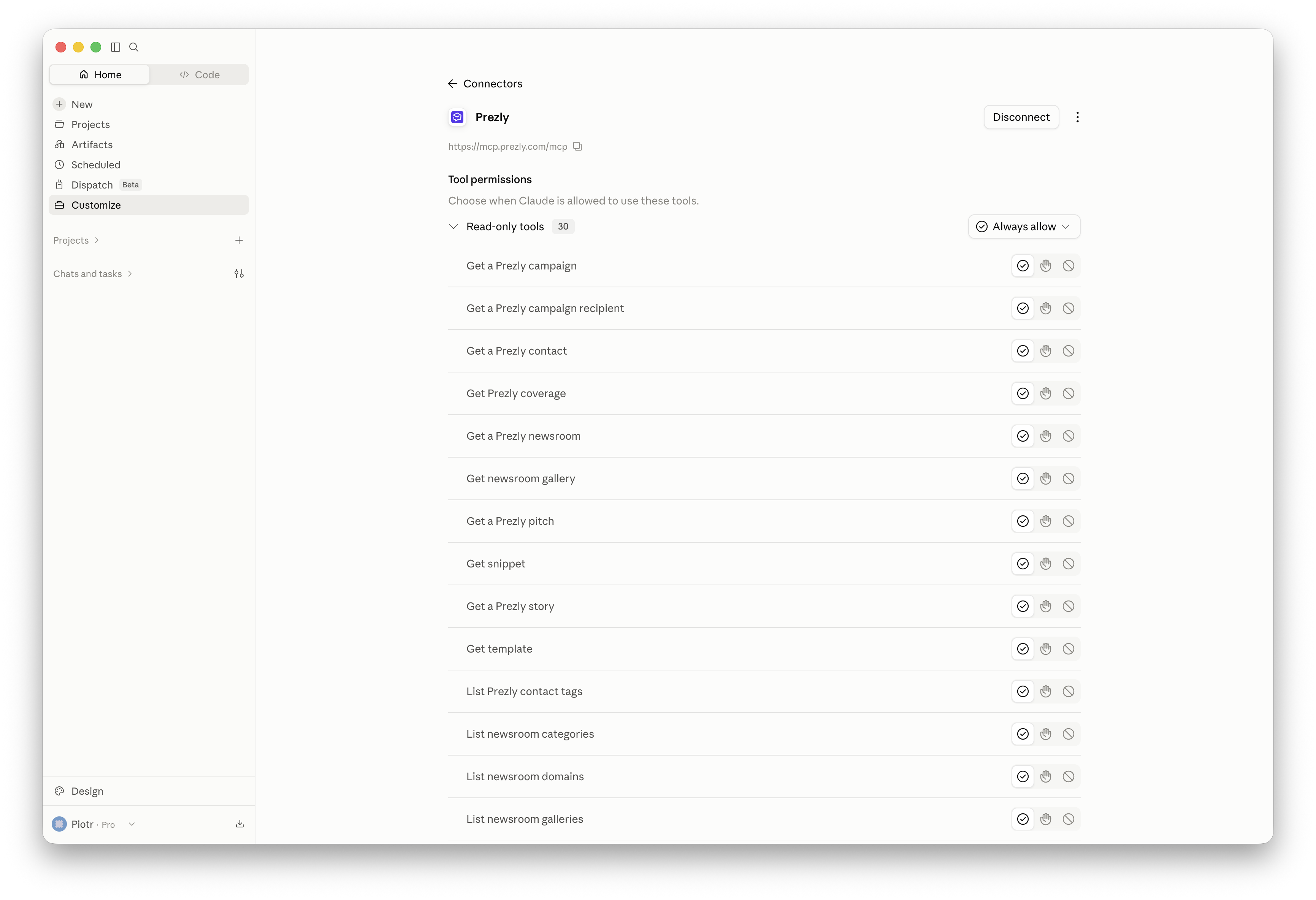
On Team and Enterprise plans, an authorized owner or administrator must add the connector. A fixed request-header credential on an organization connector is shared by its users: they act with that token owner's Prezly access. Do not attach a personal token to a shared connector unless that shared access is intended.
Follow Anthropic's custom connector instructions for the current menu locations and organization controls.
ChatGPT desktop app
Open Settings → MCP servers, add a server named Prezly, choose Streamable HTTP, and enter the URL above. Configure its authorization header in the client's private settings, then save and restart when prompted.
If your version offers Bearer token env var, that field takes a variable name such as PREZLY_API_TOKEN, not the token itself. The variable must be available to the process that launches the app; setting it in an unrelated terminal does not update an already running desktop app. Alternatively, use a private static authorization header and leave the environment-variable field empty.
The screenshot below shows the static-header option under Settings → Plugins → MCPs, the menu location in that app version. Leave Bearer token env var and Headers from environment variables empty when using this option.

View ChatGPT settings full-size.
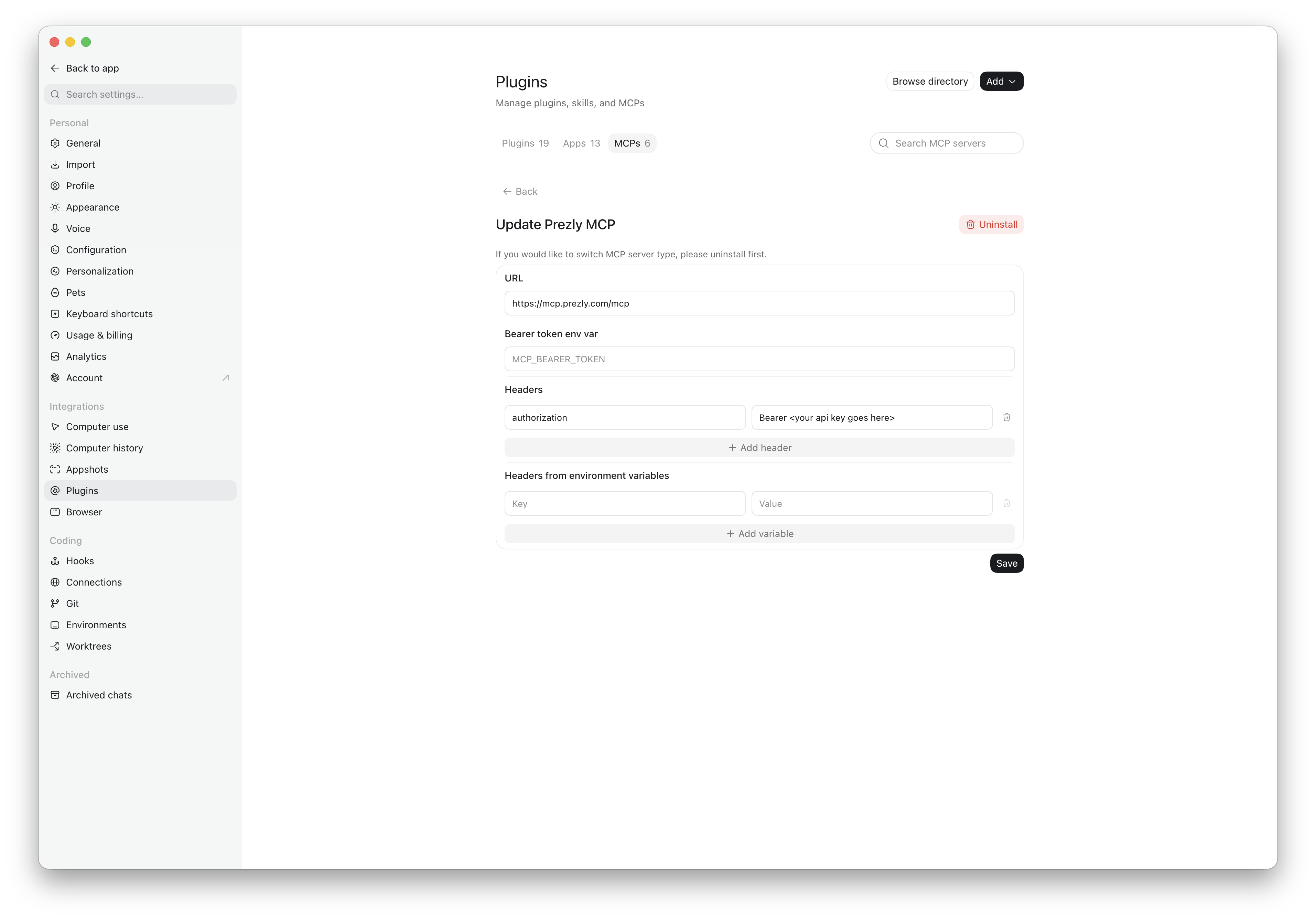
Local desktop, CLI, and IDE clients can share MCP configuration on the same Codex host. ChatGPT web uses plugins and does not read that local configuration. See the official OpenAI MCP documentation for the current setup options.
Command-line clients
Codex
Make PREZLY_API_TOKEN available through your private shell environment or secret manager, then register the server:
codex mcp add prezly \
  --url https://mcp.prezly.com/mcp \
  --bearer-token-env-var PREZLY_API_TOKEN
The command saves the variable's name. The token must also be available when you subsequently launch Codex. Use codex mcp list to inspect the entry and /mcp within a session to check its status.
The equivalent user configuration in ~/.codex/config.toml is:
[mcp_servers.prezly]
url = "https://mcp.prezly.com/mcp"
bearer_token_env_var = "PREZLY_API_TOKEN"
See the Codex MCP configuration reference for supported fields.
Claude Code
With PREZLY_API_TOKEN available in your private environment, add a user-scoped server:
claude mcp add --transport http --scope user prezly https://mcp.prezly.com/mcp \
  --header 'Authorization: Bearer ${PREZLY_API_TOKEN}'
The single quotes preserve the variable reference in the saved configuration. Claude Code expands it when connecting; this avoids saving the token value in the command. Keep the variable available when launching Claude Code, then run /mcp in a session.
Follow the Claude Code MCP documentation for configuration scope and environment-variable support in your installed version.
Verify the connection
Enable Prezly in a new conversation and ask it to list your newsrooms. Use a token with sites:read.
A successful initialization or tool listing only shows that discovery worked. Prezly checks credentials and endpoint access when a tool makes an API request. A returned newsroom list is a better first check of authentication and basic access.
Replace or revoke a token
The Personal API tokens table shows each token's expiry and last use. Select its name to inspect permissions; its value cannot be displayed again.
To replace a lost or expiring token, or change its scopes, create a new token and update the client's private settings. Verify a read with the replacement, then revoke the old token if it is still active. Revoke takes effect immediately and cannot be undone.
Use a separate named token for each connection you control so you can stop one client's access without interrupting others.
If a read fails, use the troubleshooting guide. Before enabling writes, review safety and privacy and the tool workflows.